
If you copied a link, address, or message and cannot find it, the clipboard is usually accessible through your keyboard. Learning how to see clipboard in Android starts with opening an app where you can type and checking the keyboard toolbar.
However, there is a difference between pasting your latest copied item and viewing a list of previous items. Android phones do not all provide the same clipboard history. Your keyboard, phone manufacturer, and software version determine what appears.
This guide explains how to check Gboard and Samsung Keyboard, keep useful text, and troubleshoot missing entries safely.
Start by Testing Copy and Paste
Before searching for clipboard history, check whether ordinary copying and pasting works. Use harmless sample text instead of a password or personal information.
- Open a notes app and type a short sentence.
- Touch and hold a word, then adjust the selection handles to highlight the sentence.
- Tap Copy in the selection menu.
- Open a blank note and touch and hold the typing area.
- Select Paste when the menu appears.
If your sentence appears, the basic clipboard is working. You can use this method to retrieve the latest available item without opening a history panel.
If Paste does not appear, copy the sentence again and immediately repeat the test. Make sure you are pressing an editable field rather than a heading, image, or other area that cannot accept text.
Understand Where Android Stores Clipboard History
The clipboard is temporary storage for copied content. It is not normally a folder you can open through your phone’s file manager.
A keyboard clipboard panel can retain multiple entries, but its behaviour depends on the keyboard. Some entries expire, some can be pinned, and previously copied material may disappear after deletion or other changes.
Copying something also does not necessarily save it as a permanent file. For example, copying text from a webpage does not create a document in Downloads.
If you recently changed keyboards, the new keyboard might not display the history you previously saw. Start by identifying the keyboard currently appearing when you tap a text field.
View Clipboard History in Gboard
These instructions apply to phones using Google’s Gboard, including many Android devices. Button positions can differ between versions.
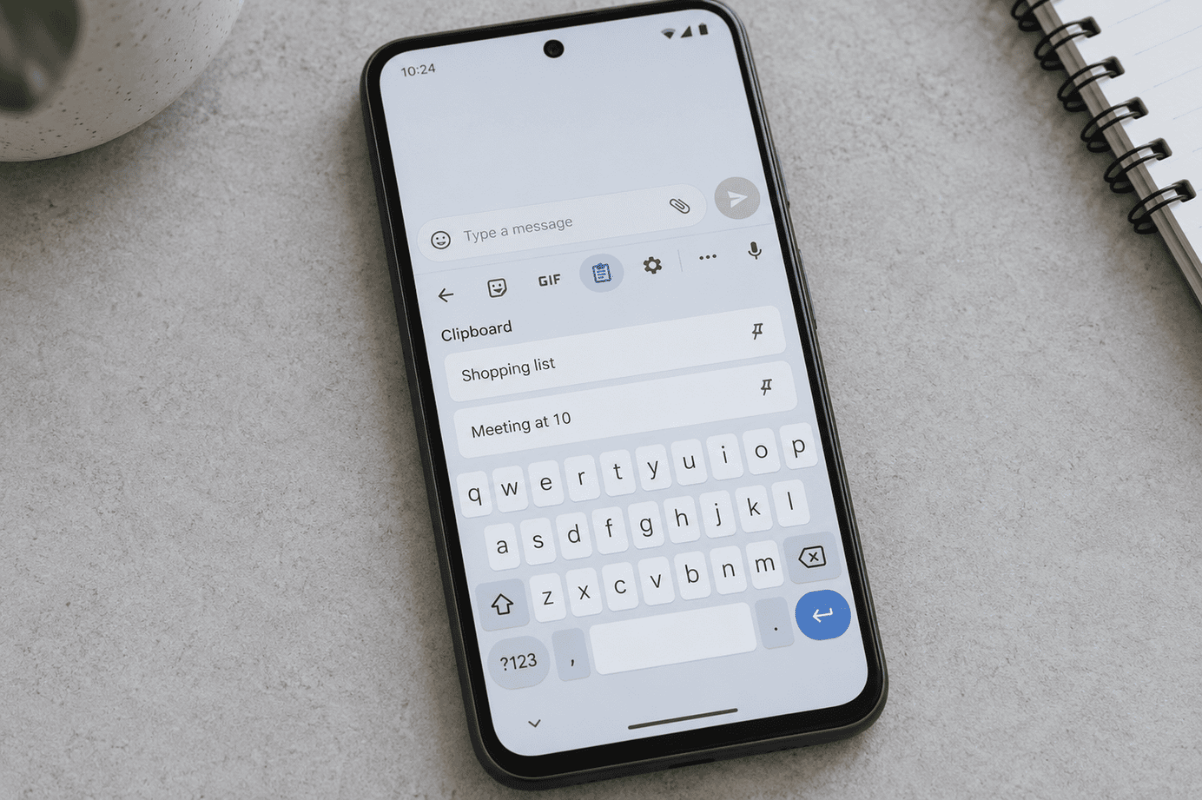
- Open an app such as Google Keep and tap inside a note.
- Look for the Clipboard icon above the keyboard keys.
- If it is hidden, open the toolbar’s features menu to find additional options.
- Tap Clipboard, then enable the feature if prompted.
- Copy a fresh sentence from your note.
- Return to the clipboard panel and tap the copied entry.
The sentence should appear wherever your cursor is positioned. This confirms that the keyboard can capture and paste new clipboard content.
Turning on clipboard history does not guarantee that older copied items will reappear. Test with newly copied text before assuming the feature is faulty.
To keep an entry, touch and hold its preview and choose Pin. Google notes that unpinned clipboard history clears shortly after use, while pinned text is excluded from that clearing process.
Find the Clipboard on Samsung Keyboard
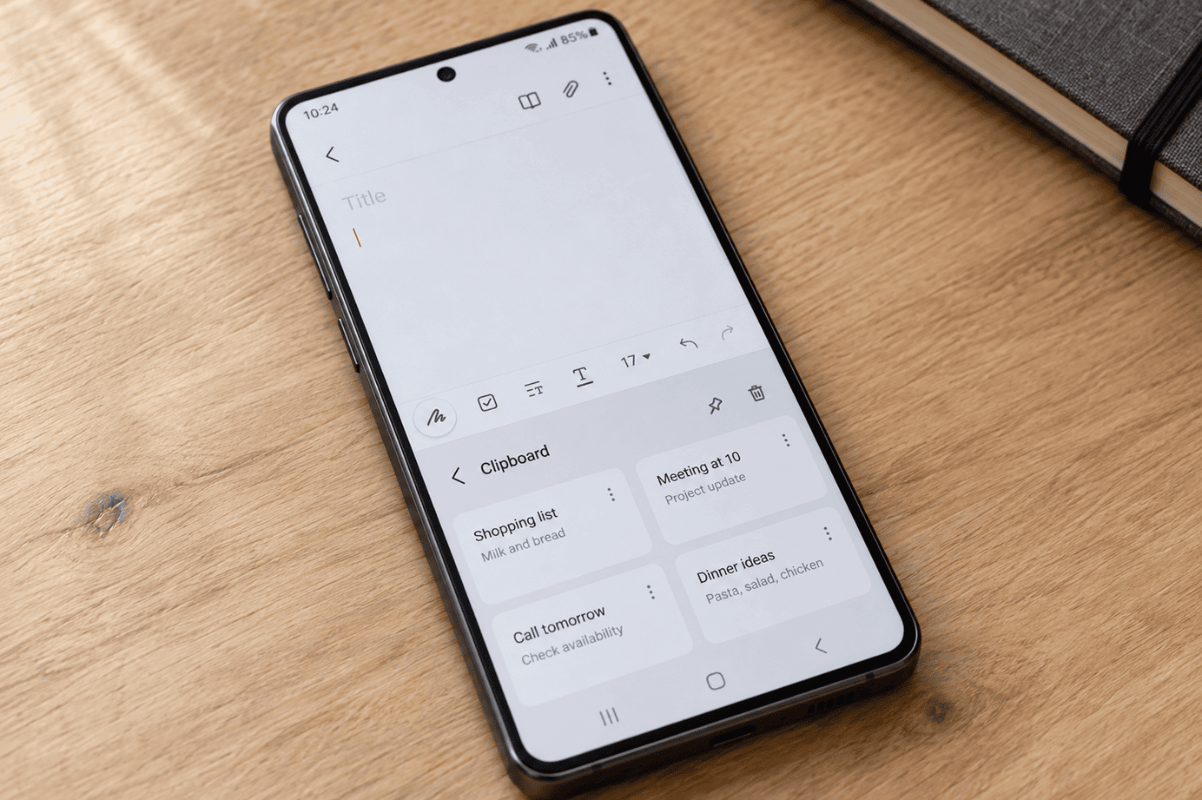
A Samsung Galaxy phone can use Samsung Keyboard, Gboard, or another keyboard. Follow these steps only if Samsung Keyboard is active.
- Open Samsung Notes or another app where you can enter text.
- Tap a blank typing area to bring up the keyboard.
- Find Clipboard in the toolbar above the keys.
- If necessary, tap the three horizontal dots to expand the toolbar.
- Tap Clipboard, then select an available entry to paste it.
If the toolbar is missing, open Samsung Keyboard settings using the gear icon and look for Keyboard toolbar. Enable it, then return to your note.
The pasted entry should appear in the text field. If the panel is empty, copy a new sentence and check again.
Samsung also supports pinning clipboard entries on compatible devices. Touch and hold an entry and look for the pin option. Labels and available controls vary with the software version.
Troubleshoot an Empty or Missing Clipboard
Work through these checks in order. After each one, copy fresh sample text and try pasting it into a note.
- Check the active keyboard. Search your phone’s Settings for “keyboard” and review the selected input method. Follow the instructions for that keyboard.
- Try a different app. Some apps and protected fields restrict copying or pasting. If the same text works in Notes but fails elsewhere, the problem may be specific to that app.
- Check whether history is enabled. Open the keyboard’s clipboard panel and follow any prompt to turn it on. Then copy something new.
- Save your work and restart. Paste any important available text into a saved note first. Temporary clipboard contents may disappear during a restart. Afterwards, repeat the test.
- Check for keyboard updates. Use Google Play or Galaxy Store, as appropriate for the keyboard. Install available updates and test again.
An empty history panel alone does not prove there is hardware damage. It can simply mean no entries remain available.
Avoid clearing keyboard storage, uninstalling the keyboard, or factory resetting the phone just to retrieve missing text. These actions may remove settings or stored information. Before considering any reset for a wider problem, back up important data and understand what will be erased. Do not assume clipboard history is included in a backup.
Keep Useful Text Without Exposing Private Information
Clipboard history is convenient for short messages and frequently used phrases, but it should not be your only copy of important writing.
Save addresses, instructions, and longer drafts in a notes app or document. Confirm that the note is saved before deleting clipboard entries.
Avoid pinning passwords, payment details, or verification codes. If you copy sensitive information, remove the relevant history entry when finished, where your keyboard provides that option.
Do not install an unfamiliar clipboard manager simply because it promises to recover deleted text. A clipboard tool may handle information you copy, so consider whether you actually need another app.
These instructions are for Android. Do not expect an iPhone keyboard or its settings to provide identical clipboard controls.
When to Ask for Professional Help
Missing clipboard history usually does not require cell phone repair. Seek an assessment if copying problems occur alongside repeated crashes, unresponsive keyboard areas, or touch failures across several apps.
Phone screen repair may be relevant when physical damage affects touch input, but diagnosis should come first. Clipboard settings cannot fix a damaged display, and a replacement screen cannot restore expired clipboard entries.
If the phone becomes dangerously hot or shows signs of battery swelling, stop using and charging it. Do not press the casing closed or attempt to open the device.
Get Help in Mississauga
If safe troubleshooting does not resolve the issue, contact Fix Phone Mississauga. Explain your phone model, active keyboard, and whether copying fails in every app or only one. Mention the steps you have already tried so the next conversation can focus on the remaining problem. Bring a harmless example that demonstrates the issue without revealing private information.