
Setting up email on an Android phone only takes a few minutes when you have the correct account information. Whether you use Gmail, Outlook, Yahoo Mail, iCloud Mail, or a business email account, Android makes it easy to access your inbox from one device.
This guide explains how to set up email on Android, fix common setup problems, and know when it may be time to seek professional assistance.
What You Need Before You Start
Before you begin, make sure you have:
- A stable Wi-Fi or mobile data connection
- Your email address
- Your email password
- An app password if your email provider requires one
- IMAP or Exchange server settings for manual setup, if needed
If you are setting up a work or school email account, your IT department may also provide additional login information.
Method 1: Set Up Email Using the Gmail App
Most Android phones include the Gmail app, which supports multiple email providers.
Follow these steps:
- Open the Gmail app.
- Tap your profile picture in the top-right corner.
- Select Add another account.
- Choose your email provider, such as Google, Outlook, Yahoo, Exchange, or Other.
- Enter your email address and password.
- Complete any security verification if prompted.
- Wait for your inbox to sync.
Once completed, you can send and receive emails normally.
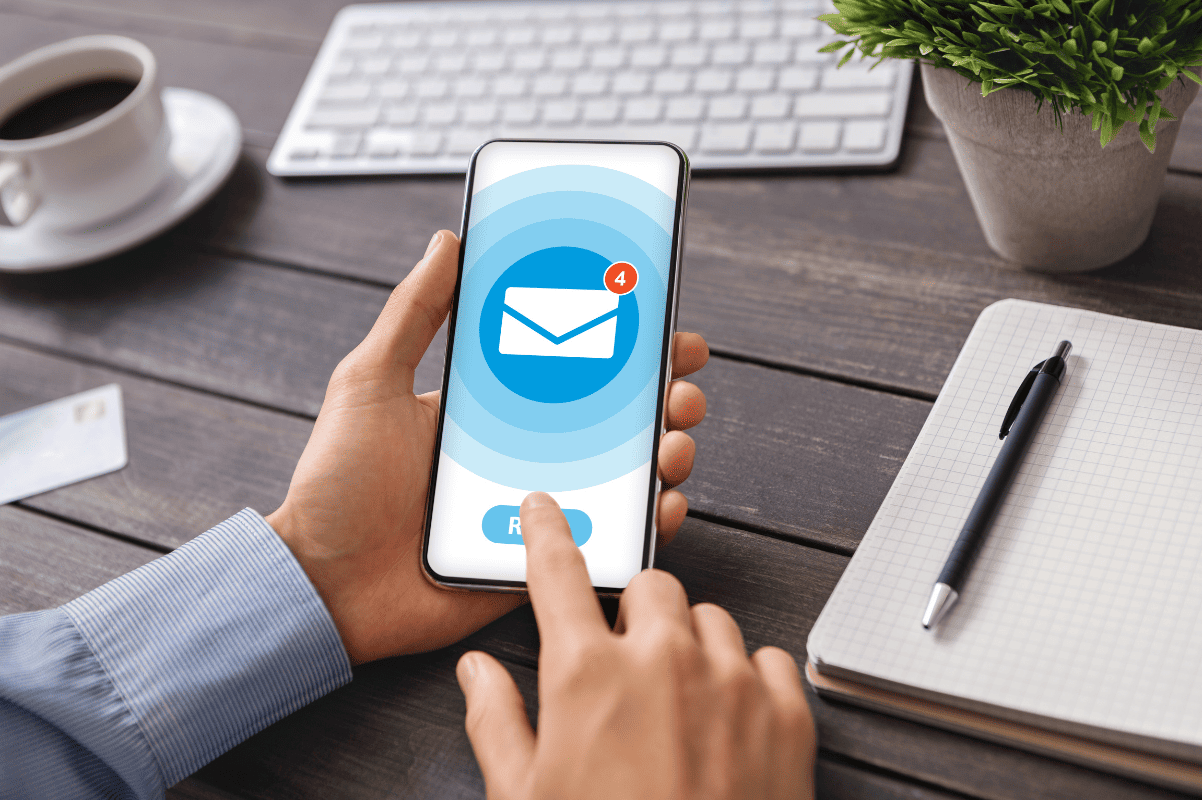
Method 2: Set Up Email with Your Provider’s App
Some providers offer dedicated apps with extra features.
Popular options include:
- Microsoft Outlook
- Yahoo Mail
- Proton Mail
- Spark Mail
Simply download the official app from Google Play, sign in with your account, and follow the on-screen instructions.
How to Add a Work or Business Email
If your company uses Microsoft Exchange or Microsoft 365, follow these steps:
- Open the Gmail app.
- Tap Add another account.
- Select Exchange and Office 365.
- Enter your work email address.
- Sign in using your company credentials.
- Approve any required security permissions.
- Allow your email, contacts, and calendar to sync.
Common Email Setup Problems and Fixes
If your email account does not connect, try these solutions before assuming there is a problem with your phone.
Check Your Internet Connection
- Make sure Wi-Fi or mobile data is connected.
- Open a website to confirm your internet is working properly.
Verify Your Password
- Double-check that your password is correct.
- Reset your password if you recently changed it or cannot remember it.
Update the Gmail App
- Open Google Play Store.
- Install any available updates for Gmail or your email application.
Confirm Server Settings
If you selected Other during setup:
- Verify the IMAP and SMTP settings.
- Check that the incoming and outgoing port numbers are correct.
Restart Your Android Phone
- Restart the device.
- Try adding the email account again after the phone turns back on.
When Your Phone May Need Professional Repair
Sometimes the issue is with the device rather than the email account.
Signs that your phone may need professional attention include:
- Email apps crash repeatedly.
- Wi-Fi disconnects without warning.
- Settings fail to save.
- Multiple apps stop syncing.
- The phone frequently freezes or restarts.
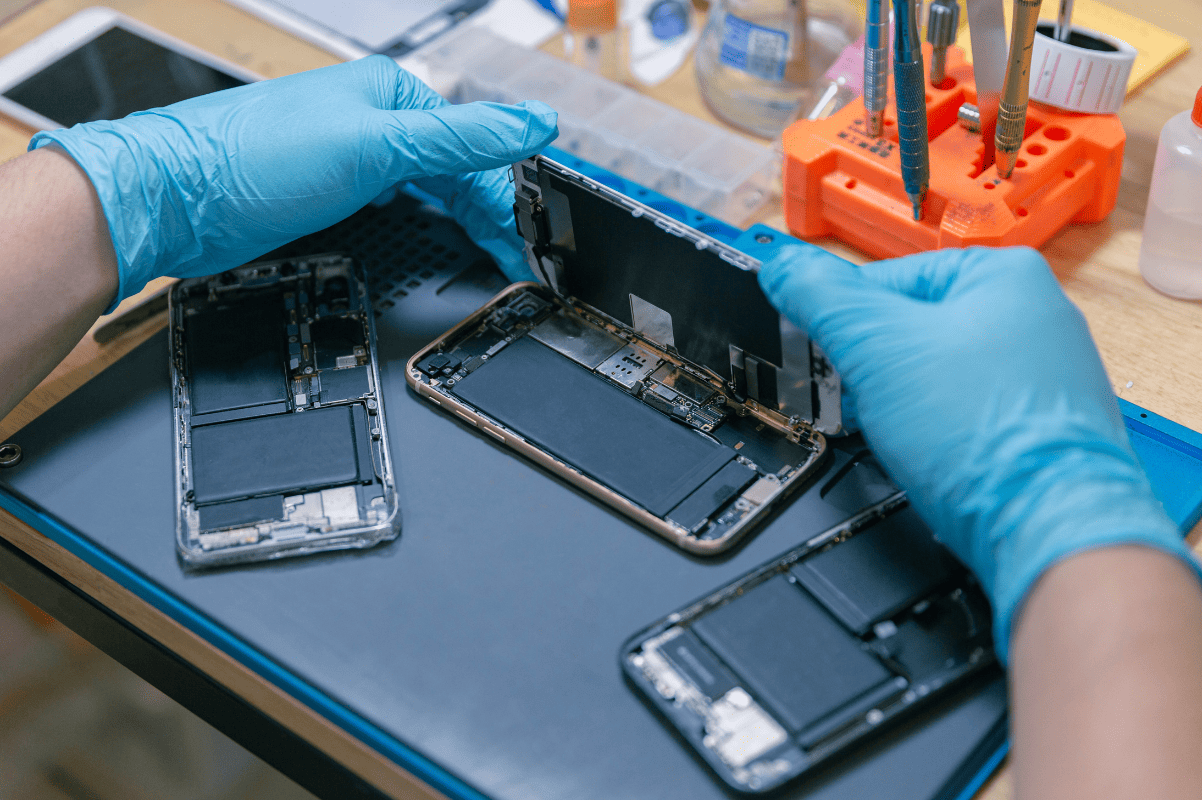
If these problems continue after basic troubleshooting, a professional Cell phone repair technician can inspect your device. If you are looking for reliable Phone repair Mississauga, visiting a trusted local repair shop can help identify software or hardware issues before they become more serious.
Learning how to setup email on Android is simple when you follow the correct steps. Most email accounts can be added through the Gmail app in just a few minutes. If you experience problems, start with the basic troubleshooting methods in this guide. When those solutions do not resolve the issue, professional assistance can help restore your Android device so you can access your email without interruption.