Keeping your calendar updated across different devices makes it easier to manage work, family events, appointments, and reminders. If one person uses an iPhone and another uses an Android phone, sharing a calendar is still simple with the right service.
This guide explains the easiest ways to share a calendar between iPhone and Android and how to fix common syncing problems.
Can You Share a Calendar Between iPhone and Android?
Yes. The easiest way is to use a cloud-based calendar service that works on both operating systems.
Popular options include:
- Google Calendar
- Apple iCloud Calendar
- Microsoft Outlook Calendar
Google Calendar is usually the simplest option because it works well on both iPhone and Android.
Method 1: Share a Calendar Using Google Calendar
Google Calendar is the most reliable option for users with different devices.
Step 1: Install Google Calendar
If you don’t already have it:
- Download Google Calendar on your iPhone.
- Most Android phones already include it.
Sign in using your Google account.
Step 2: Create or Select a Calendar
Open Google Calendar.
Choose an existing calendar or create a new one for family, work, or events.
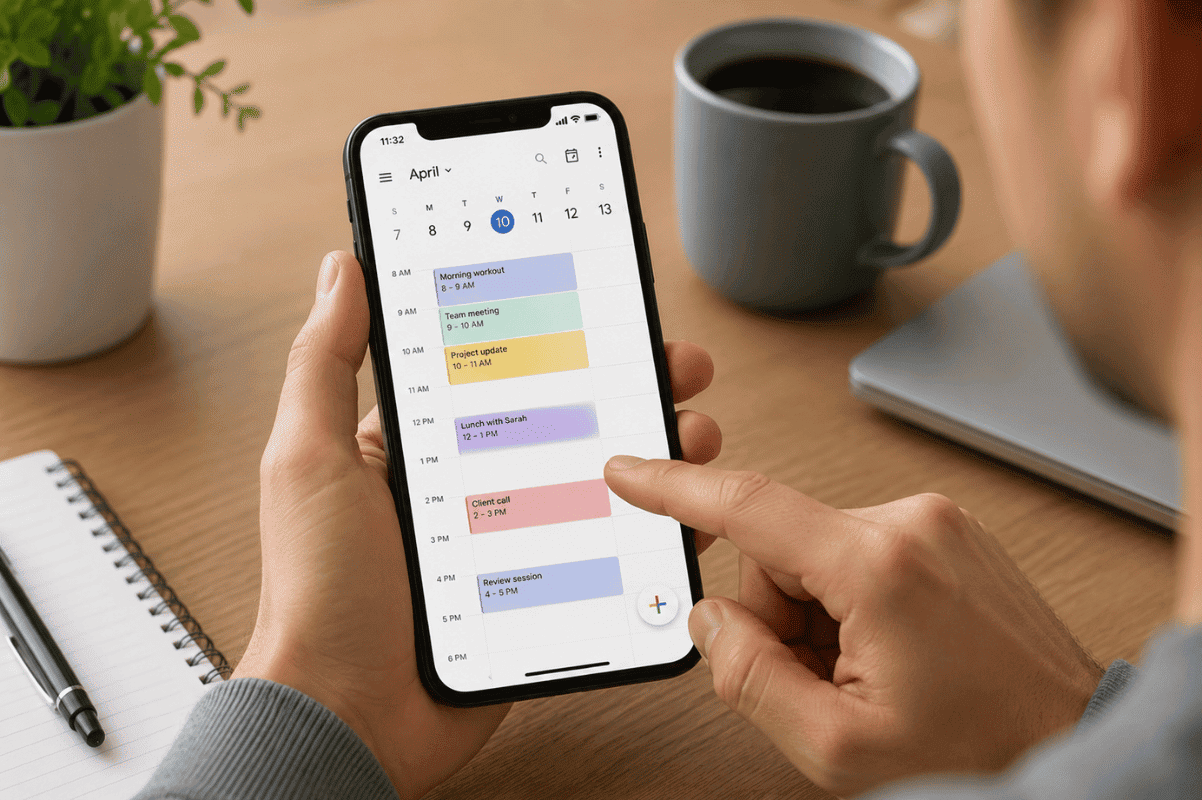
Step 3: Share the Calendar
On a computer, open Google Calendar in a web browser.
Select the calendar you want to share.
Open Settings and Sharing.
Under Share with specific people, add the other person’s Gmail address.
Choose the permission level:
- See only free or busy times
- View event details
- Edit events
- Manage sharing
Save your changes.
Step 4: Accept the Invitation
The other person receives an email invitation.
After accepting, the shared calendar appears on both devices.
Method 2: Share an iCloud Calendar With Android
If you mainly use Apple’s Calendar app, you can still share it.
Step 1: Open iCloud Calendar
On your iPhone:
- Open Calendar.
- Tap Calendars.
- Tap the information icon beside the calendar.
Step 2: Add People
Choose Add Person.
Enter the Apple ID email address if you’re sharing with another Apple user.
For Android users, you may need to create a public calendar link, although this provides view-only access rather than full editing.
Method 3: Use Microsoft Outlook Calendar
If you already use Outlook for work or school, it supports both platforms.
Simply:
- Sign in on both devices.
- Open Calendar.
- Share your calendar with another Outlook account.
- Choose viewing or editing permissions.
Changes sync automatically whenever both devices are connected to the internet.
How to Keep Calendars Synced
To avoid missing events:
- Keep internet access enabled.
- Use the same calendar account consistently.
- Turn on automatic synchronization.
- Install the latest app updates.
- Check that calendar permissions are enabled in phone settings.
Common Calendar Sharing Problems
If sharing isn’t working, these fixes usually help.
Calendar Not Updating
Refresh the calendar app.
If that doesn’t help, restart both devices.
Wrong Google Account
Many users have multiple Google accounts.
Make sure both devices are signed into the correct account.
Sync Is Disabled
Check your account settings and verify calendar synchronization is turned on.
Invitation Was Not Accepted
Shared calendars will not appear until the recipient accepts the invitation.
Ask them to check their email, including the spam folder.
Incorrect Time Zone
Different time zones can cause appointments to appear at the wrong time.
Verify both devices are using automatic date and time settings.
Which Calendar Service Is Best?
For most users:
| Service | Best For |
| Google Calendar | iPhone and Android users together |
| iCloud Calendar | Apple users |
| Outlook Calendar | Business and Microsoft users |
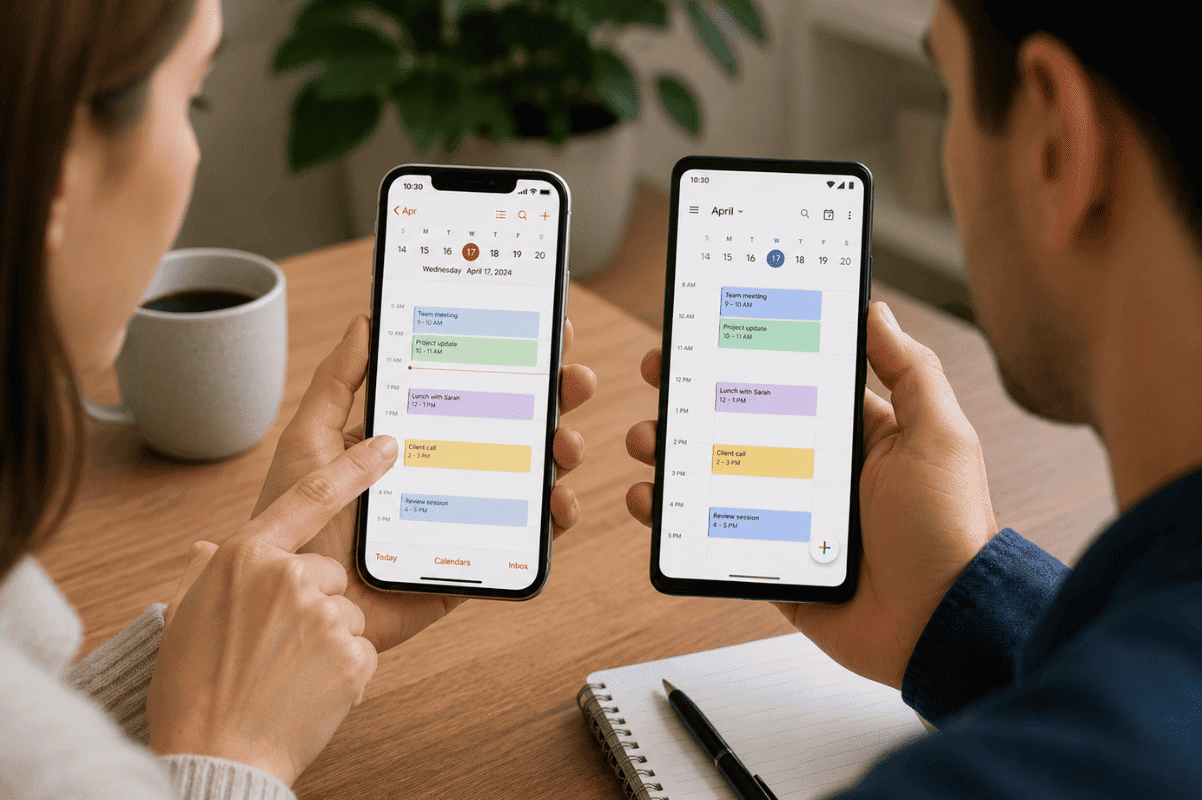
If you frequently switch between Android and iPhone, Google Calendar offers the easiest long-term compatibility.
When Calendar Issues May Be Caused by Your Phone
If calendars stop syncing even after resetting accounts, updating apps, and checking your internet connection, your phone could have software or storage issues affecting synchronization.
Problems such as repeated app crashes, failed updates, or damaged system files may require professional troubleshooting. If your device has additional issues beyond calendar syncing, professional Cell phone repair services can help identify whether the problem is software or hardware related.
Sharing a calendar between iPhone and Android is easier than many people expect. Google Calendar is the most convenient option for most households because it works seamlessly across both platforms. Outlook and iCloud also provide reliable alternatives depending on the services you already use.
If you’ve tried every troubleshooting step and your phone continues experiencing sync problems or other performance issues, visiting a trusted Phone repair Mississauga technician can help determine whether the device itself needs attention.
Frequently Asked Questions
Can I share my iPhone calendar with an Android phone?
Yes. Google Calendar is the easiest option, while iCloud calendars can also be shared with some limitations.
Do both users need the same phone brand?
No. Calendar sharing works between different operating systems as long as both devices use a compatible calendar service.
Is Google Calendar free?
Yes. Google Calendar is free with a Google account.
Why isn’t my shared calendar updating?
Check your internet connection, account sync settings, app updates, and make sure the invitation has been accepted.
Can both people edit the calendar?
Yes, if the owner grants editing permission when sharing the calendar.