Is your Android phone taking longer to open apps, freezing during everyday tasks, or responding slowly when you tap the screen? You may not need professional help right away.
Over time, Android phones can slow down because of limited storage, too many background processes, outdated software, or demanding apps. Fortunately, several simple fixes can improve performance at home.
Here is how to speed up an Android phone step by step.
1. Restart Your Android Phone
Start with the simplest solution: restart the phone.
A restart closes temporary processes and clears minor system glitches that may be affecting performance.
Try this:
- Press and hold the power button.
- Select Restart.
- Wait for the phone to turn back on.
- Test a few apps to see whether performance improves.
If your phone has been running continuously for several days, this can make a noticeable difference.
2. Check Your Storage Space
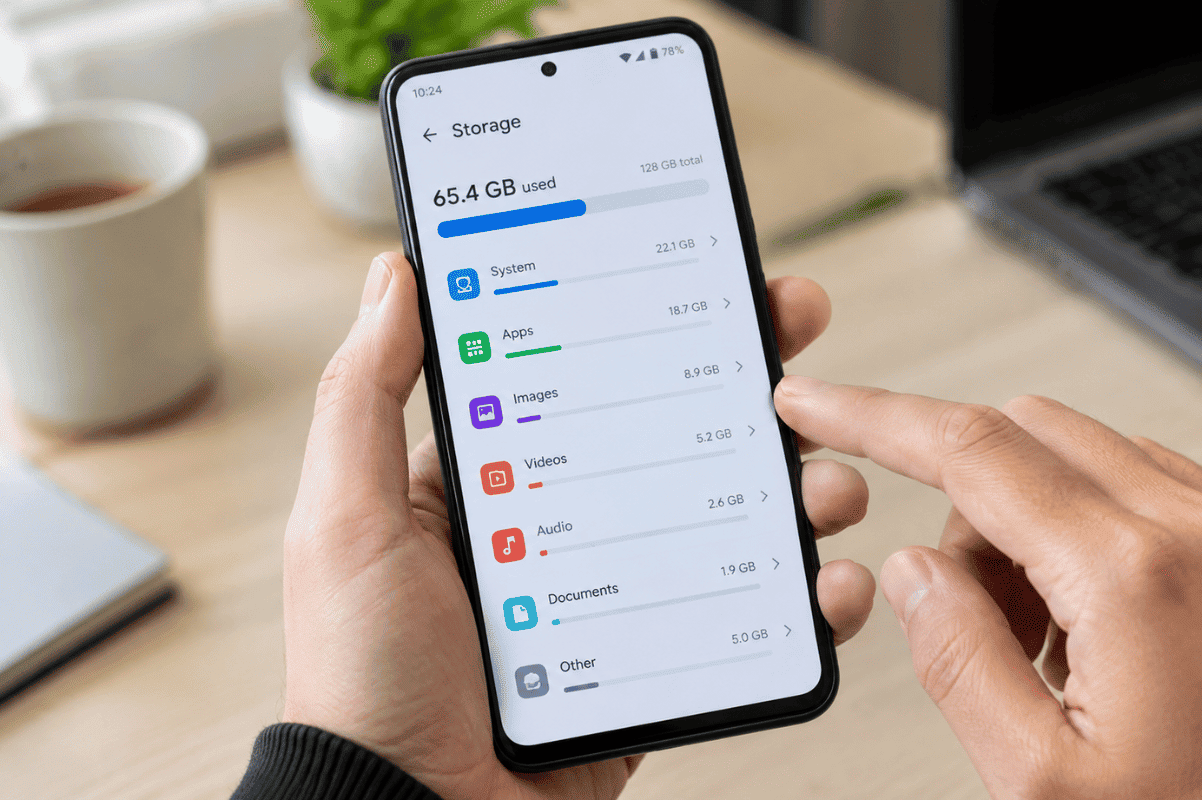
Low storage is one of the first things to check when an Android phone becomes sluggish.
Go to Settings > Storage. The exact menu may differ depending on your Android version and phone manufacturer.
Remove files you no longer need, such as:
- Old videos and photos
- Downloaded files
- Unused apps
- Duplicate files
- Large media files
Try to keep enough free storage for Android and your apps to work normally.
3. Remove Apps You Don’t Use
Unused apps take up storage and some may continue running background processes.
Review your installed apps and uninstall those you no longer need.
Go to Settings > Apps, select an app, and choose Uninstall when available.
Avoid removing system apps unless you know exactly what they do.
4. Update Android and Your Apps
Software updates can include performance improvements, security fixes, and bug corrections.
Check:
Settings > System > Software Update
Then open the Google Play Store and check for available app updates.
If your phone is significantly behind on updates, installing the latest compatible software may help resolve performance problems.
5. Clear App Cache
Some apps accumulate temporary cached data over time. Clearing the cache can sometimes help when a particular app is slow or behaving incorrectly.
Go to:
Settings > Apps > [App Name] > Storage > Clear Cache
Be careful not to select Clear Storage or Clear Data unless you understand what it will remove. Those options can delete locally stored app information or require you to sign in again.
6. Reduce Background Activity
Some apps constantly use resources in the background, particularly social media, shopping, streaming, and messaging apps.
Check your battery or app settings to identify apps using unusually high resources.
If an app you rarely use is consuming significant background activity, consider restricting its background usage or uninstalling it.
7. Remove Unnecessary Widgets and Live Wallpapers
Animated wallpapers and numerous home-screen widgets can consume additional system resources.
If your Android phone is older or has limited RAM, simplify the home screen.
Try using:
- A standard wallpaper
- Fewer widgets
- Fewer animated effects
- Only the shortcuts you regularly use
This will not transform every slow phone, but it can reduce unnecessary activity.
8. Check for Problematic Apps
If your phone became slow immediately after installing a particular app, that app may be contributing to the problem.
Think about when the slowdown started. If it happened after installing or updating an app, temporarily remove that app and test the phone again.
Also avoid downloading apps from unfamiliar sources, as poorly designed or unsafe software can cause performance and security problems.
9. Back Up Your Data and Consider a Factory Reset
If your phone remains slow after trying the basic fixes, a factory reset is a more significant option.
Before doing this, back up important photos, contacts, messages, documents, and other data.
A factory reset removes personal data and installed apps and returns the phone to its initial software state. Follow your manufacturer’s instructions carefully before proceeding.
For an older phone, however, a reset may only provide temporary improvement if the underlying hardware is aging.
10. Know When You Need Professional Help
If your Android phone is still extremely slow after cleaning storage, removing unnecessary apps, updating software, and restarting, the problem may not be something you can solve through settings alone.
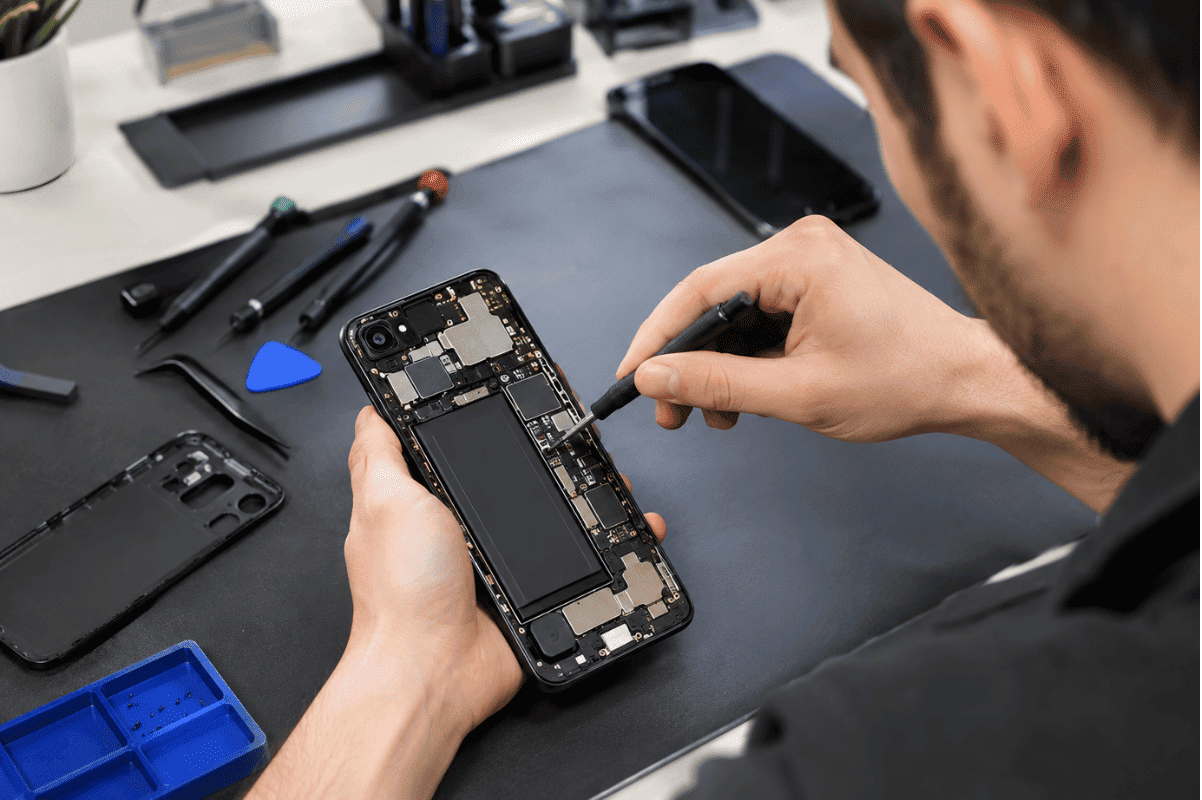
Hardware-related issues, failing storage, battery problems, overheating, or other internal faults can affect phone performance.
If basic troubleshooting does not solve the problem, professional Cell phone repair can help identify whether the issue is software or hardware related.
For local customers looking for Phone repair Mississauga, a technician can diagnose the phone before recommending a repair.
Speed Up Your Android Phone
Before taking your phone to a repair shop, try these steps:
- Restart the phone
- Check available storage
- Delete unnecessary files
- Uninstall unused apps
- Update Android
- Update apps
- Clear cache for problematic apps
- Reduce background activity
- Simplify widgets and animations
- Back up your data before considering a factory reset
If none of these solutions improves performance, professional diagnosis is the next practical step. A technician can determine whether the slowdown is caused by software, a specific app, battery-related problems, or an underlying hardware issue.