
Getting a new Android phone does not mean you need to manually move every photo, contact, message, and app. Android provides built-in transfer tools that can copy most of your important data from an old phone to a new one.The easiest method is usually to transfer your data while setting up the new Android phone. You can use a USB cable or transfer wirelessly over Wi-Fi. Google currently supports both methods, although the exact screens can vary by phone manufacturer and Android version.
This guide explains how to transfer data from Android to Android safely and what to do if the transfer does not work.
What Can You Transfer to a New Android Phone?
Android’s built-in transfer process can copy many types of data, including:
- Contacts
- Photos and videos
- Text messages
- Call history
- Apps and some app data
- Music
- Wallpapers
- Many device settings
- Multimedia files attached to text messages
Google notes that some information may not transfer automatically, including downloaded PDFs, files stored in hidden folders, apps installed outside Google Play, some app data, ringtones, and information connected to non-Google accounts.Because of this, do not erase your old phone immediately after completing the transfer.
Before Transferring Your Data
A few preparations can prevent problems during the process.
Charge Both Phones
Charge both devices before starting. Large transfers can take considerable time, especially if your old phone contains many photos and videos.
Connect to Wi-Fi
Connect both phones to a stable Wi-Fi network. Google recommends having an internet connection available during Android setup and data transfer.
Update Your Old Phone
Check for available Android and app updates before moving your data.
You can usually find system updates under:
Settings > System > Software Update
The wording can differ between Samsung, Google Pixel, Motorola, OnePlus, and other Android phones.
Back Up Important Data
On your old Android phone, go to:
Settings > Google > Backup
Check that your important information has recently been backed up.
Google backups can include device data, settings, messages and other supported information. Google also notes that restoring a backup from a newer Android version to a phone running an older Android version may not work completely.
How to Transfer Data from Android to Android with a Cable
A cable is one of the most reliable options when both phones are available.You will normally need a compatible USB-C cable. An adapter may be required if the phones use different connectors.
Step 1: Turn On the New Android Phone
Start your new phone and follow the setup instructions.
Connect it to Wi-Fi when prompted.
Step 2: Choose to Copy Your Data
When Android asks whether you want to copy apps and data, select Copy or the equivalent option displayed on your phone.
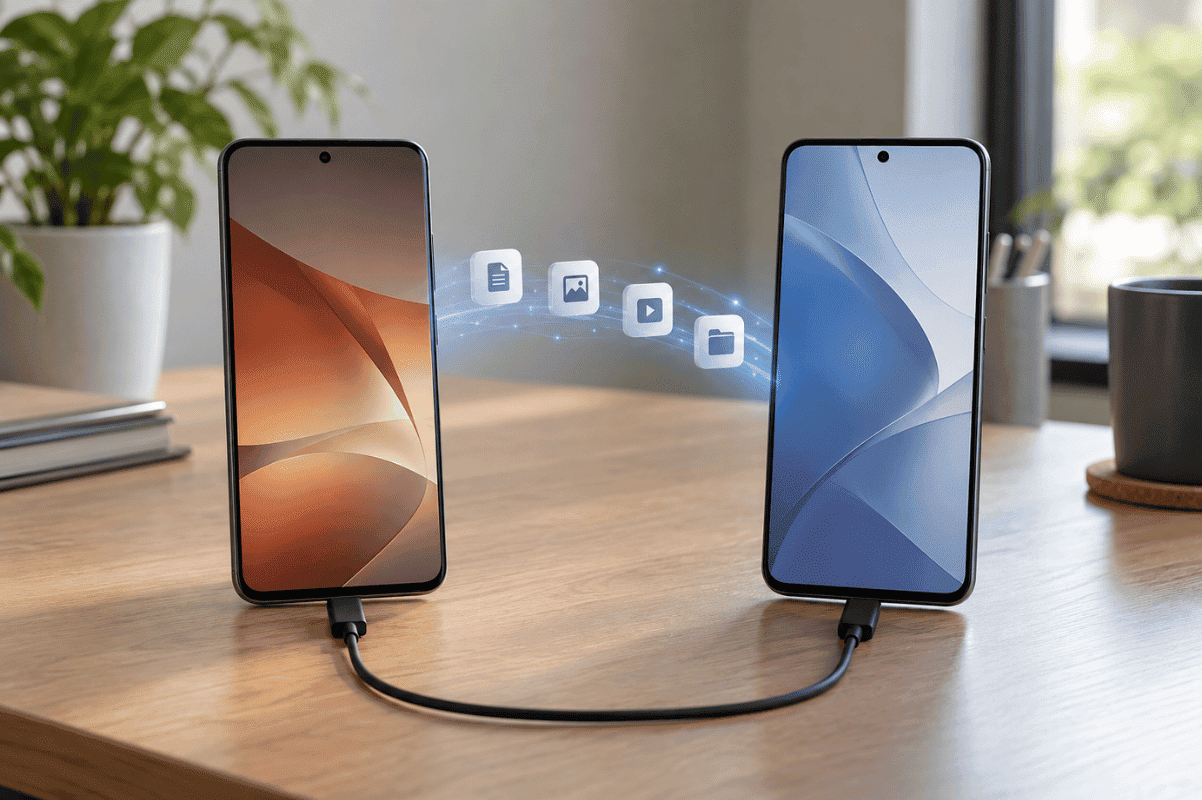
Step 3: Connect Your Phones
Connect the old Android phone to the new phone using the appropriate cable.
Unlock your old phone if requested.
Step 4: Confirm the Transfer
Follow the instructions displayed on both devices.
You may need to confirm your old phone’s PIN, pattern, or password.
Step 5: Select What You Want to Copy
Android should display the types of data available for transfer.
Select the information you want, such as:
- Apps
- Contacts
- Photos
- Videos
- Messages
- Device settings
Tap Copy or Transfer.
Keep both phones connected until the transfer is complete. Google says the process can take anywhere from a few minutes to more than an hour depending on how much information is being transferred.
How to Transfer Android Data Without a Cable
You can also transfer data wirelessly if you do not have a compatible cable.
During setup on the new Android phone:
- Choose the option to copy your apps and data.
- Select the wireless or No cable option when available.
- Keep both phones close together.
- Follow the instructions displayed on the old phone.
- Confirm that the codes, shapes, or QR information shown on both phones match.
- Choose the data you want to transfer.
- Start the transfer.
Current Android setup can pair the two devices and move supported information wirelessly.Avoid turning off Wi-Fi or restarting either phone until the process finishes.
How to Transfer Data from Android to Samsung
If your new phone is a Samsung Galaxy, you can also use Samsung Smart Switch.Samsung Smart Switch can transfer data from another Android phone to a Galaxy device either wirelessly or through a compatible USB cable.
For a wireless transfer:
- Open Smart Switch on both phones.
- Choose Send from this phone on the old device.
- Choose Receive on this phone on the new Galaxy.
- Select Wireless.
- Follow the QR code or connection instructions.
- Select the data you want.
- Start the transfer.
- Wait until Samsung confirms that it is complete.
Samsung also supports USB cable transfers and certain external storage backup methods.
How to Transfer Data to a Google Pixel
Google Pixel phones include their own guided transfer process.On current Pixel models, you can pair the old Android phone with the new Pixel and transfer information wirelessly or with a cable. The setup process may ask you to scan a QR code using your old phone.Follow the instructions on the Pixel and select which apps and information you want to move.
Can You Transfer Data If Your Old Phone Is Not Available?
If the old Android phone is lost, damaged, or no longer available, you may still be able to restore information from your Google Account.
During setup of the new phone:
- Sign in with the same Google Account used on the old device.
- Select an available backup when prompted.
- Confirm your identity if required.
- Choose the information you want to restore.
- Allow Android to complete the restoration.
Google says a full restore can continue for up to 24 hours after setup, depending on the amount of data and other factors.
What About WhatsApp Messages?
Do not assume that an ordinary Android phone transfer will automatically preserve every WhatsApp conversation.Before changing phones, open WhatsApp on your old device and check that your chats are properly backed up or use WhatsApp’s supported transfer process.Google’s Android guidance states that WhatsApp chats can be restored after signing into WhatsApp on the new Android phone when the required backup has been created first.Confirm that your conversations and media are available on the new phone before deleting anything from the old one.
What to Do If Android Data Transfer Is Not Working
If your phones will not connect or the transfer stops:
- Restart both phones.
- Make sure both devices are sufficiently charged.
- Check your Wi-Fi connection.
- Install available Android updates.
- Try another compatible USB cable.
- Make sure there is enough storage space on the new phone.
- Unlock the old phone and keep its screen active when requested.
- Try transferring fewer categories of data at one time if your phone provides that option.
If the wireless method repeatedly fails, try a wired connection.
Do Not Factory Reset Your Old Phone Yet
Once the transfer finishes, check your new phone carefully.Open your photos, contacts, messages, apps and important documents. Sign into essential apps and confirm that the information you need is available.Only factory reset or sell the old phone after you are confident that your important files have been transferred or backed up.
What If the Old Android Phone Is Damaged?
Data transfer becomes more difficult if the old phone has a broken display, damaged charging port, water damage, or motherboard problem.If the screen still turns on but touch does not work Phone screen repair may restore enough functionality to unlock the device and transfer your information.More serious board-level damage may require diagnostic work or Micro Soldering, particularly when important data is trapped on a phone that will not start or communicate with a computer.
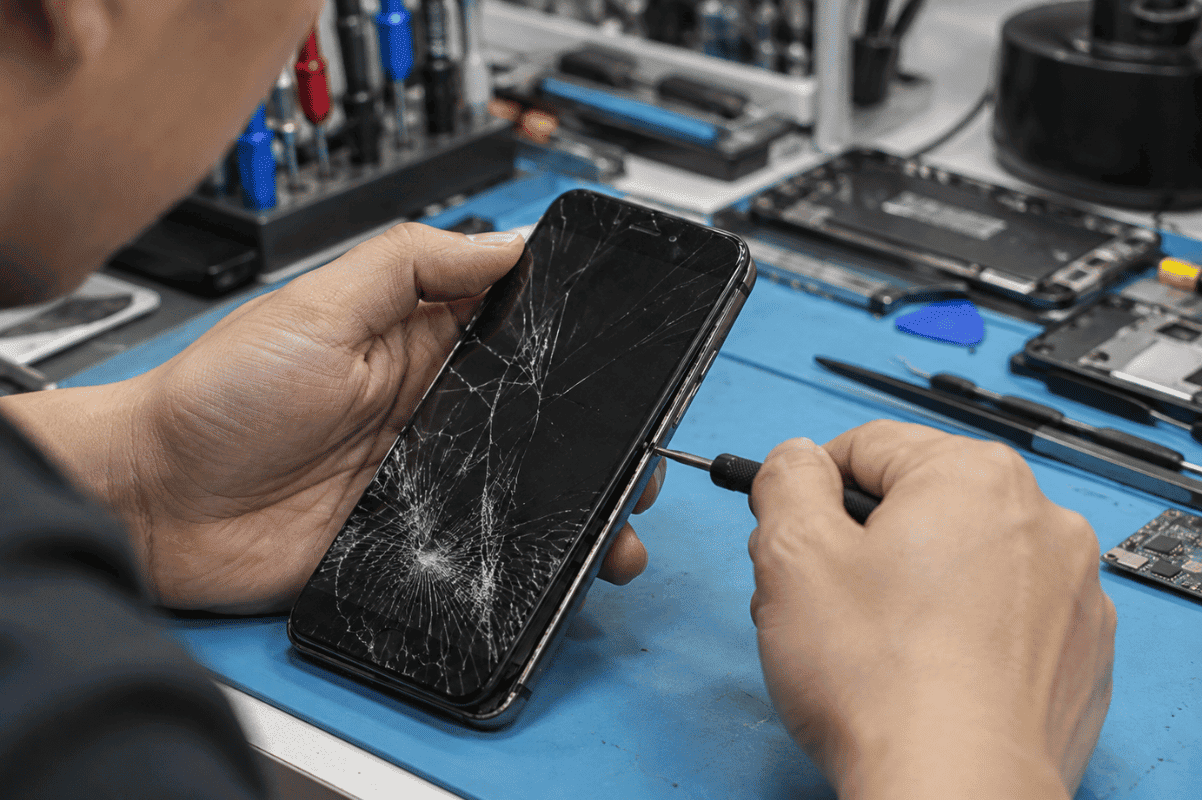
If you are in Mississauga, try the normal Android transfer and backup methods first. If physical damage prevents you from accessing the old device, a mobile repair technician can inspect it and determine whether repairing the phone may allow the data to be recovered.The easiest way to transfer data from Android to Android is to use Android’s built-in transfer option during the setup of your new phone. A cable is a reliable choice, while wireless transfer is convenient when you do not have the correct cable.Back up your old phone first, keep both devices charged, and check your important files after the transfer. Most importantly, do not erase the old Android phone until you have confirmed that your contacts, photos, messages and other important information are safely available on the new device.