
Many Android phones include a blue light filter that reduces the amount of blue light emitted from the screen. This feature can help reduce eye strain, especially when using your phone at night. However, some users find that the screen appears too yellow or warm and prefer to turn the feature off.
This guide explains how to turn off blue light on Android devices and what to do if the screen colour does not return to normal.
What Is the Blue Light Filter?
The blue light filter changes your screen’s colour temperature by reducing blue tones and adding warmer colours. Depending on your phone brand, this feature may be called:
- Blue Light Filter
- Night Light
- Eye Comfort Shield
- Reading Mode
- Eye Protection Mode
The feature is designed to make screen viewing more comfortable in low-light environments.
How to Turn Off Blue Light on Android
Most Android devices allow you to disable the feature in a few steps.
- Open Settings.
- Tap Display.
- Look for Night Light, Blue Light Filter, or Eye Comfort Shield.
- Tap the setting.
- Turn the feature Off.
Your screen should immediately return to its normal colour settings.
Turn Off Blue Light Using Quick Settings
Many Android phones provide a shortcut in the Quick Settings menu.
- Swipe down from the top of the screen.
- Swipe down again to expand the Quick Settings panel.
- Look for Night Light, Blue Light Filter, or Eye Comfort Shield.
- Tap the icon to disable it.
This is often the fastest way to turn the feature on or off.
Check for Scheduled Blue Light Settings
Sometimes the blue light filter keeps turning on automatically because a schedule has been enabled.
To check:
- Open Settings.
- Select Display.
- Open the blue light filter settings.
- Look for Schedule, Turn On Automatically, or Sunset to Sunrise.
- Disable any active schedules.
This prevents the feature from turning itself back on later.
Why Does My Screen Still Look Yellow?
If your display still appears yellow after turning off the blue light filter, there may be another display setting affecting the screen.
Check for:
- Reading Mode
- Colour Correction settings
- Accessibility display options
- Battery Saver mode
- Third-party screen filter apps
Disabling these settings may restore the original screen colours.
Restart Your Android Device
A simple restart can resolve display glitches.
To restart:
- Press and hold the power button.
- Tap Restart.
- Wait for the device to power back on.
Many temporary software issues disappear after a restart.
Update Your Phone Software
Display-related problems can sometimes be caused by software bugs.
To check for updates:
- Open Settings.
- Tap Software Update or System Update.
- Download and install any available updates.
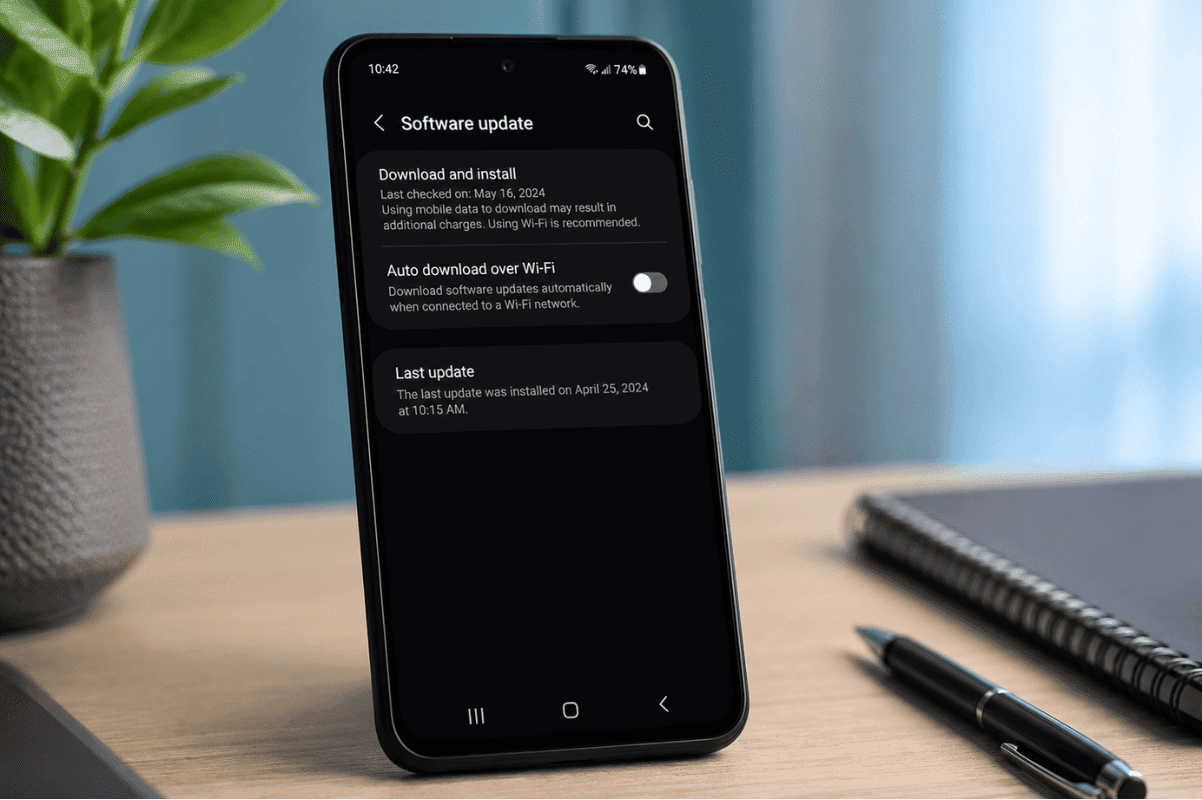
Software updates often include fixes for display and performance issues.
When to Visit a Phone Repair Shop
If your screen remains discoloured, flickers, or displays unusual colours after trying these steps, the issue may be related to the display hardware rather than a setting.
A professional Phone Repair Mississauga technician can inspect the device and determine whether the problem is caused by software or a damaged display component. In some cases, a Phone screen repair service may be necessary if the screen has experienced impact damage or internal display failure.
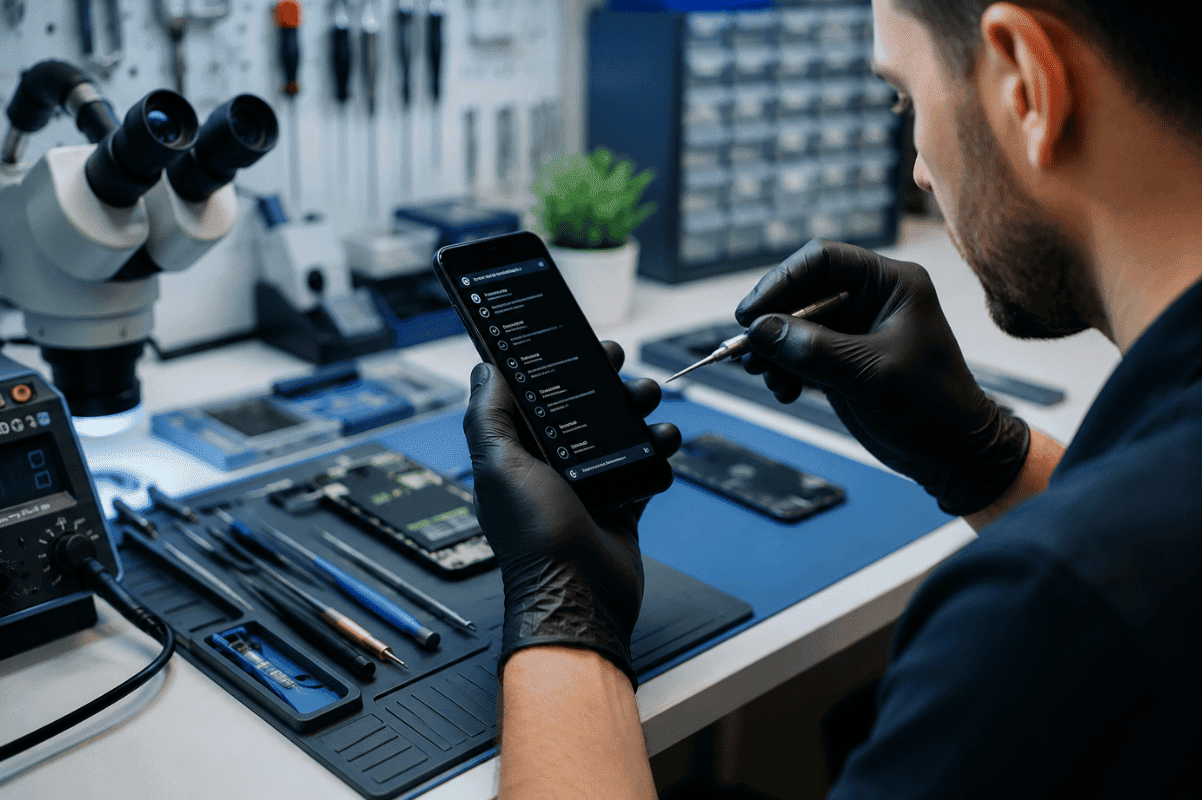
Turning off blue light on Android is usually as simple as disabling Night Light or Eye Comfort Shield in the display settings. Most users can restore normal screen colours within a few minutes.
If the display continues to show colour issues after adjusting settings and restarting the device, professional diagnostics can help identify the underlying problem before it becomes worse.