
If you want more privacy when texting, you can turn off read receipts on Android so other people cannot easily tell when you have opened their messages. The exact steps depend on the messaging app you use.
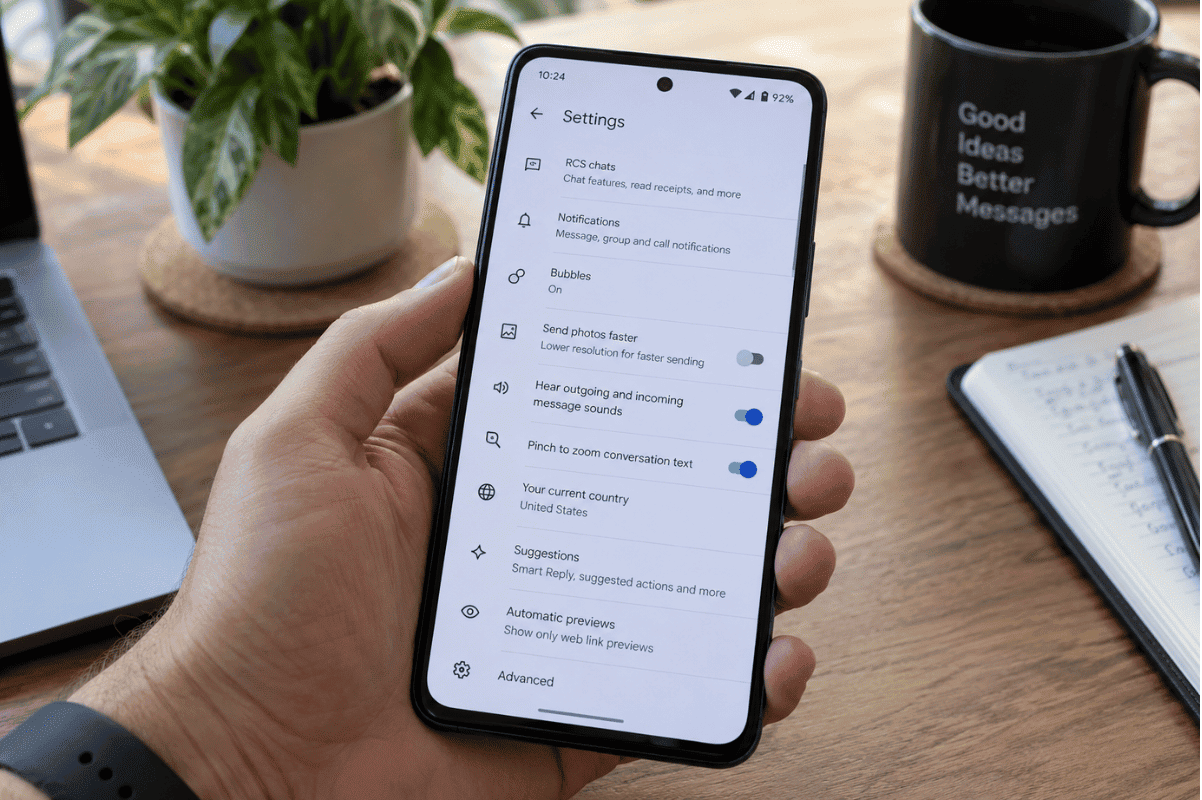
For most people using Google Messages, open Google Messages > Profile picture > Messages settings > RCS chats, then turn off Send read receipts. On some versions of the app, the RCS section may still appear as Chat features. Google confirms that read receipts are part of RCS messaging and can be controlled from these settings.
There is no single Android-wide read receipt switch that controls every messaging app. Google Messages, Samsung Messages, WhatsApp, Messenger, and other apps can manage their messaging features separately.
This guide explains how Android read receipts work, how to turn them off, and what to check if you cannot find the setting.
What Are Read Receipts on Android?
A read receipt is a notification that tells the sender when you have opened or read a message.Depending on the messaging system, you may see different message statuses:
Sent: Your message has left your phone.
Delivered: The message has reached the recipient’s device or messaging service.
Read: The recipient has opened or read the message.
On modern Android phones, read receipts are commonly associated with RCS, or Rich Communication Services. RCS provides features beyond traditional SMS and MMS, including typing indicators, higher-quality media sharing, messaging over Wi-Fi or mobile data, and read receipts.If you are using standard SMS or MMS instead of RCS, you generally will not have the same type of read receipt experience.
How to Turn Off Read Receipts in Google Messages
Google Messages is commonly used as the primary messaging app on Android phones. If your conversations use RCS, you can disable the read receipt feature without completely disabling RCS.
Follow these steps:
- Open the Google Messages app.
- Tap your profile picture or profile icon in the top-right corner.
- Select Messages settings.
- Tap RCS chats.
- If you do not see RCS chats, look for Chat features instead.
- Find Send read receipts.
- Turn the setting off.
Google’s current instructions place the read receipt option inside the RCS settings. Google also notes that some versions may display the section as Chat features instead of RCS chats.Once the setting is disabled, other people using compatible RCS messaging should no longer receive a read receipt from you when you open their messages.You do not need to turn RCS off completely just to stop sending read receipts.
Do Not Disable RCS Unless You Need To
Google Messages also allows you to disable RCS entirely, but that is different from simply disabling read receipts.
Turning RCS off can remove access to features such as:
- Read receipts
- Typing indicators
- Higher-quality media sharing
- Messaging over Wi-Fi or mobile data
- Some RCS group chat features
Google advises against repeatedly turning RCS on and off because doing so can affect RCS group chats. If privacy is your only concern, disabling Send read receipts is usually the more appropriate option.
How to Turn Off Read Receipts on Samsung Phones
The instructions for Samsung phones depend on which messaging app your device uses.
If your Samsung phone uses Google Messages, follow the Google Messages instructions above:
Google Messages > Profile icon > Messages settings > RCS chats > Send read receipts
Some Samsung devices or regions may use Samsung Messages instead.
Google’s RCS documentation notes that on supported Samsung devices, RCS settings may be found by opening Samsung Messages, going to Menu > Settings > RCS chats settings, and managing the Rich Communication Services options there. Available options can vary depending on the phone, carrier, region, and software version.If you cannot find the same menu names, first check which messaging app is currently set as your default.
How Do You Know If a Message Is Using RCS?
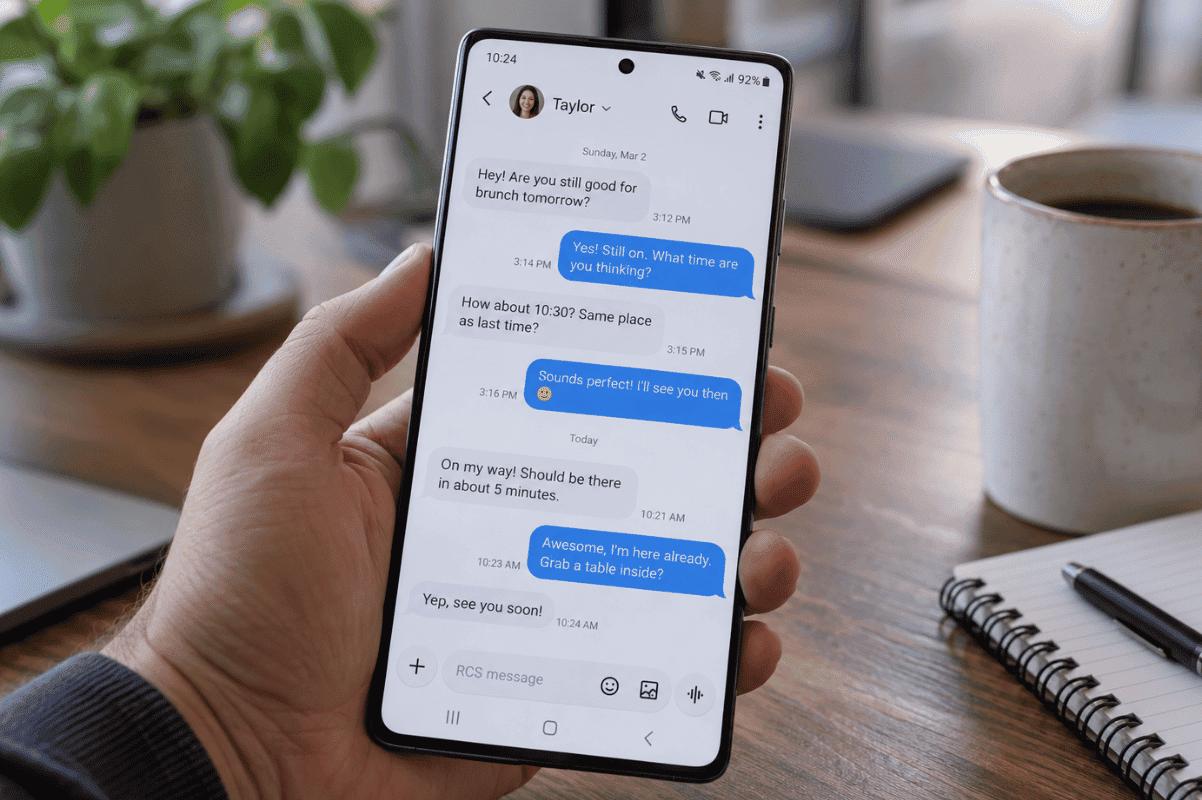
If you are unsure whether read receipts apply to a conversation, check how Google Messages identifies the message.RCS conversations use an internet connection through Wi-Fi or mobile data. Google Messages can also show whether a message is being sent through RCS, SMS, or MMS.Google explains that SMS and MMS conversations may display labels identifying them as SMS or MMS, while RCS provides the richer chat features associated with modern messaging.RCS generally needs to be available and enabled for the people participating in the conversation for features such as read receipts to work.
Can You Turn Off Read Receipts for SMS?
Traditional SMS does not normally provide the same read receipt system as RCS.SMS may provide delivery-related information in some situations, depending on your phone and carrier, but delivery and reading are not the same thing.A delivery notification may tell you that a message reached another device or network. It does not necessarily mean the recipient opened and read the message.RCS is what adds richer messaging features such as modern read receipts and typing indicators to supported Android conversations. If RCS is unavailable, Google Messages can still send standard SMS or MMS messages.This distinction is important because searching through your phone’s SMS settings for a universal read receipt switch may not produce the option you expect.
What Happens When You Turn Off Read Receipts?
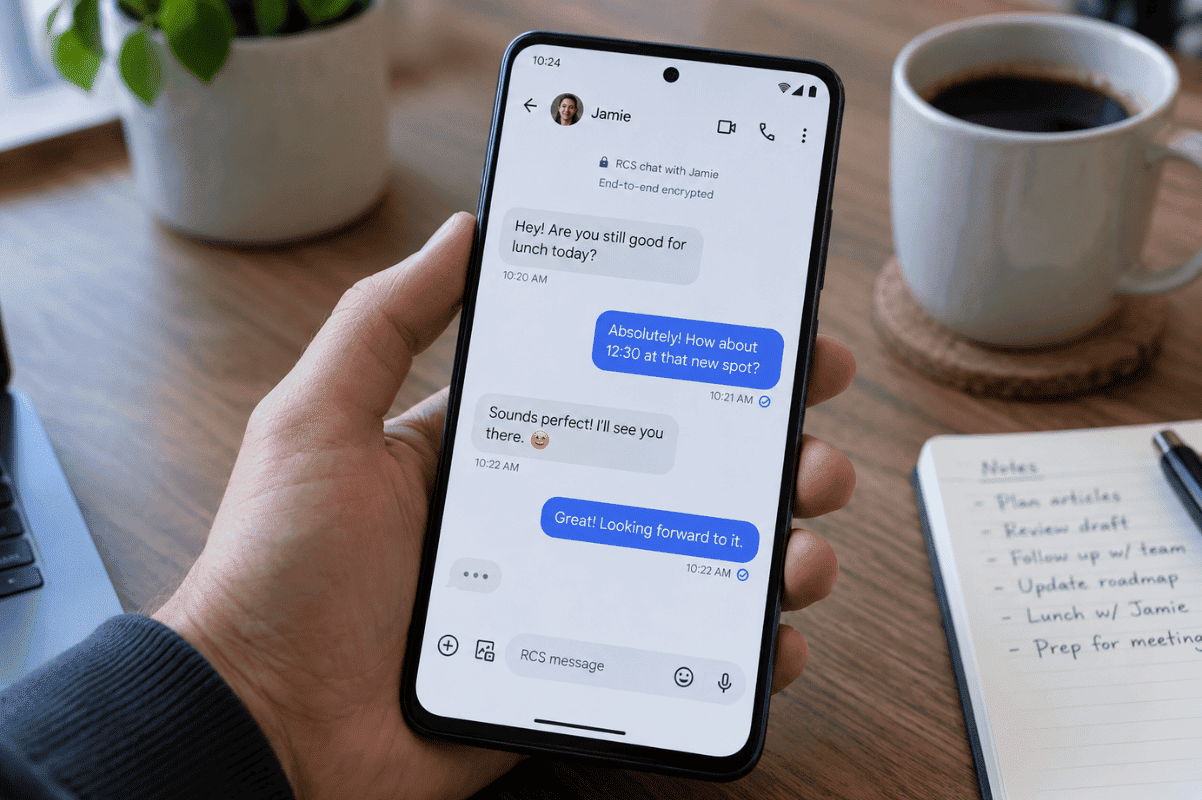
When you disable Send read receipts in Google Messages, other people should no longer be informed through that feature when you read their RCS messages.This does not stop messages from being delivered to your phone.It also does not block contacts, delete conversations, disable notifications, or prevent you from opening messages normally.Keep in mind that seeing when someone else reads your messages depends on their own settings. Google states that for you to know when someone has read your message, that person must also have read receipts turned on.In other words, you cannot force another person’s phone to send you a read receipt.
Do Android Read Receipt Settings Affect WhatsApp and Other Apps?
No. Changing read receipt settings in Google Messages does not automatically change the settings in every messaging app installed on your Android phone.Apps that use their own messaging systems manage features independently.For example, if you change Send read receipts inside Google Messages, that setting applies to supported messaging within Google Messages. It does not function as a universal privacy setting for every social media or messaging app.If another app is showing when you have read messages, check that application’s own privacy or messaging settings.The same principle applies if you have more than one messaging app installed. Always confirm which app you are actually using before changing settings.
Why Can’t I Find the Read Receipts Setting?
If Send read receipts does not appear where expected, there are several possible reasons.
1. You Are Using a Different Messaging App
Open the conversation and confirm whether you are using Google Messages, Samsung Messages, or another app.The menus will not necessarily be the same.
2. RCS Is Not Enabled
Read receipts in Google Messages are an RCS feature. If RCS is unavailable or disabled, you may not see the same controls.You can check your status by opening:
Google Messages > Profile icon > Messages settings > RCS chats
Google lists statuses such as Connected, Connecting, Trouble connecting, and Not supported.
3. Your Device or Carrier Does Not Support the Feature
RCS availability can depend on your device, carrier, messaging provider, and region. Google recommends checking your carrier when RCS is shown as unavailable or disabled by the carrier.
4. Your Google Messages App Needs Updating
If your menus look different or messaging features are not working correctly, check the Google Play Store for updates to Google Messages.Updating the app may resolve problems caused by an outdated version.
5. The Menu Has a Different Name
Google specifically notes that users who cannot find RCS chats may see Chat features instead.This is why Android instructions may look slightly different from one device to another.
Can Android Users Send Read Receipts to iPhone Users?
RCS is no longer limited to Android-to-Android messaging.Google states that RCS messaging is available between Android and supported iPhones when RCS is enabled. Compatible Android-to-iPhone conversations can support features including read receipts, typing indicators, group chat features, and higher-resolution media.However, the exact experience still depends on whether RCS is active and supported for both participants.If the conversation falls back to SMS or MMS, some RCS features will not be available.
When Should You Get Professional Help?
A missing read receipt option by itself usually does not mean your phone needs repair.Start by checking your messaging app, updating Google Messages, checking your internet connection, confirming your RCS status, and restarting your phone.If Google Messages repeatedly crashes, the phone cannot send or receive messages properly, apps constantly fail, or several communication features stop working at the same time, there may be a broader software or device issue.Users looking for Phone repair Mississauga services can consider having the phone professionally diagnosed if basic troubleshooting does not resolve persistent problems.A qualified Cell phone repair technician can help determine whether the problem is related to the messaging app, Android software, network configuration, SIM connectivity, or another device issue.
For most Android users, turning off read receipts is straightforward:
Open Google Messages > Profile icon > Messages settings > RCS chats > turn off Send read receipts.
If RCS chats does not appear, look for Chat features instead.Remember that Android does not have one universal read receipt switch for every application. Google Messages controls its own RCS read receipts, while other messaging apps may have separate privacy settings.If you cannot find the option, first confirm which messaging app you are using and whether RCS is enabled. In most cases, changing the correct messaging setting is all you need to keep your message-reading activity more private.