
Wi-Fi Calling lets your Android phone make and receive calls over a Wi-Fi connection when cellular coverage is weak or unavailable. It can be useful in areas with poor mobile reception, but you may want to disable it if calls are dropping, call quality is inconsistent, or you prefer your phone to use the cellular network.
The exact steps can vary by Android phone, software version, and mobile carrier. Here is a practical guide for turning off Wi-Fi Calling on common Android devices.
What Happens When You Turn Off Wi-Fi Calling?
Disabling Wi-Fi Calling does not turn off Wi-Fi itself. Your phone can still connect to Wi-Fi for internet access, apps, messaging, and other online services.It simply stops your regular carrier calls from using Wi-Fi as a calling connection. Your phone will normally use the cellular network for calls instead.Keep in mind that cellular coverage and carrier support can affect how calls work after Wi-Fi Calling is disabled.
How to Turn Off Wi-Fi Calling on Android
The menu names depend on your device. Start with the method that matches your phone.
Method 1: Google Pixel
On recent Pixel phones, you can usually find Wi-Fi Calling through the SIM settings.
- Open Settings.
- Tap Network & internet.
- Select SIMs.
- Tap your mobile carrier or SIM.
- Select Wi-Fi Calling.
- Turn off Use Wi-Fi calling.
Google notes that carrier support can affect whether this option is available.
Method 2: Samsung Galaxy
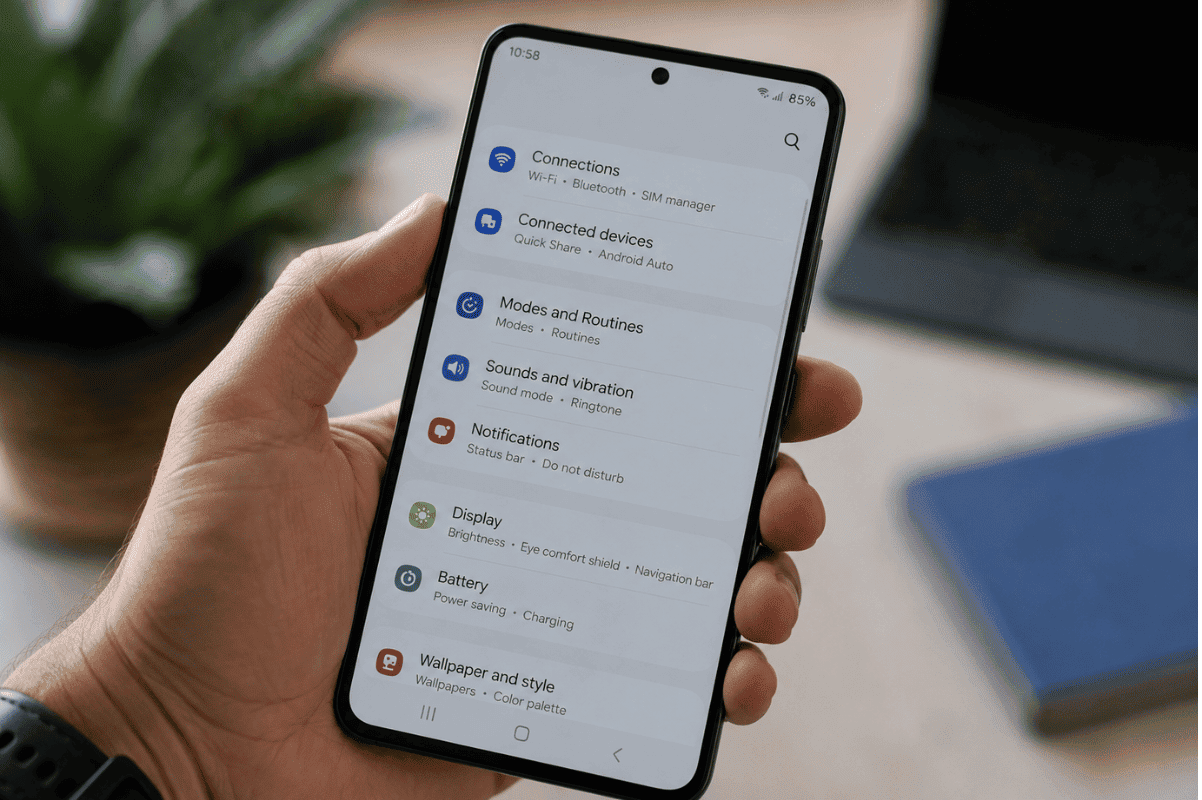
On many Samsung Galaxy phones, the setting is located under Connections.
- Open Settings.
- Tap Connections.
- Select Wi-Fi Calling.
- Tap the switch to turn it off.
On some Galaxy models, you may also find Wi-Fi Calling in the Quick Settings panel. Samsung notes that menu options can vary by carrier and device.
Method 3: Use the Phone App
Some Samsung devices provide another route:
- Open the Phone app.
- Tap the three-dot menu.
- Select Settings.
- Look for Wi-Fi Calling.
- Turn the feature off.
If you cannot find the option, your carrier or phone model may place the setting somewhere else.
What If You Cannot Find Wi-Fi Calling?
If the Wi-Fi Calling option is missing, do not assume something is wrong with your phone.
The feature can depend on your carrier, SIM or eSIM, phone model, and software version. Some carriers may also control whether the option appears on the device.
Try these steps:
- Open Settings and use the search bar.
- Search for Wi-Fi Calling.
- Check your SIM or Mobile Network settings.
- Restart your phone and check again.
- Make sure your phone software is up to date.
- Contact your carrier if the option remains unavailable.
Wi-Fi Calling Is Off, But Calls Still Have Problems
Turning off Wi-Fi Calling may reveal that the underlying issue is actually related to cellular reception, the SIM, network settings, or the phone itself.
Try a few basic checks before seeking professional help.
1. Check Cellular Signal
Turn Wi-Fi off temporarily and check whether you have a reliable cellular signal. Make a short test call to see whether the problem continues.
2. Restart the Phone
A simple restart can refresh the cellular connection and resolve temporary software or network issues.
3. Check the SIM or eSIM
If calls continue to fail, confirm that your physical SIM is properly installed. For an eSIM, check that the mobile plan is active in your network settings.
4. Check for Software Updates
An outdated Android version or carrier configuration can sometimes cause connectivity problems. Install available system updates, then test your calls again.

Should You Turn Wi-Fi Calling Back On?
If you regularly experience weak cellular coverage at home, work, or another location, Wi-Fi Calling may actually improve call reliability.When enabled and supported by your carrier, your phone can route calls through Wi-Fi when appropriate. Carrier policies and available features can vary, so check your mobile provider’s requirements if you are unsure.
When Basic Troubleshooting Does Not Work
If your Android phone still drops calls, loses network service, fails to recognize the SIM, or has persistent connectivity problems after checking these settings, the problem may not be Wi-Fi Calling.At that point, professional Cell phone repair can help identify whether the issue is related to the software, SIM connection, antenna, charging or internal hardware.For persistent problems that need hands-on diagnosis, Phone repair Mississauga services can be a practical next step rather than repeatedly changing network settings without identifying the underlying cause.Turning off Wi-Fi Calling on Android is usually straightforward, but the exact menu depends on your phone and carrier. On Pixel devices, check Network & internet > SIMs, while Samsung Galaxy phones commonly use Connections > Wi-Fi Calling.If disabling the feature does not resolve your calling problem, test your cellular signal, restart the phone, check your SIM or eSIM, and install available updates. If the problem continues, professional diagnosis may be needed.