
Sometimes apps disappear from your Android phone without being deleted. In many cases, the app is simply hidden through launcher settings, parental controls, or app drawer customization. Before visiting a repair shop, there are a few simple steps you can try at home to restore hidden apps on your device.
If the problem continues after trying these methods, professional phone repair support may help identify deeper software issues.
Check the App Drawer Settings
Many Android launchers allow users to hide apps manually. This is one of the most common reasons apps disappear.
Steps to unhide apps:
- Open the app drawer on your Android phone.
- Tap the three-dot menu in the top corner.
- Select Home Screen Settings or Hide Apps.
- Review the hidden apps list.
- Remove the checkmark beside the app you want to restore.
After completing these steps, the app should appear again in your app drawer and home screen.
Search for the Missing App
Sometimes the app is still installed but moved to another folder or screen.
Try this:
- Swipe down on the home screen.
- Use the search bar to type the app name.
- If the app appears, press and hold it.
- Tap Add to Home Screen.
This method works well for Samsung, Google Pixel, Motorola, and many other Android devices.
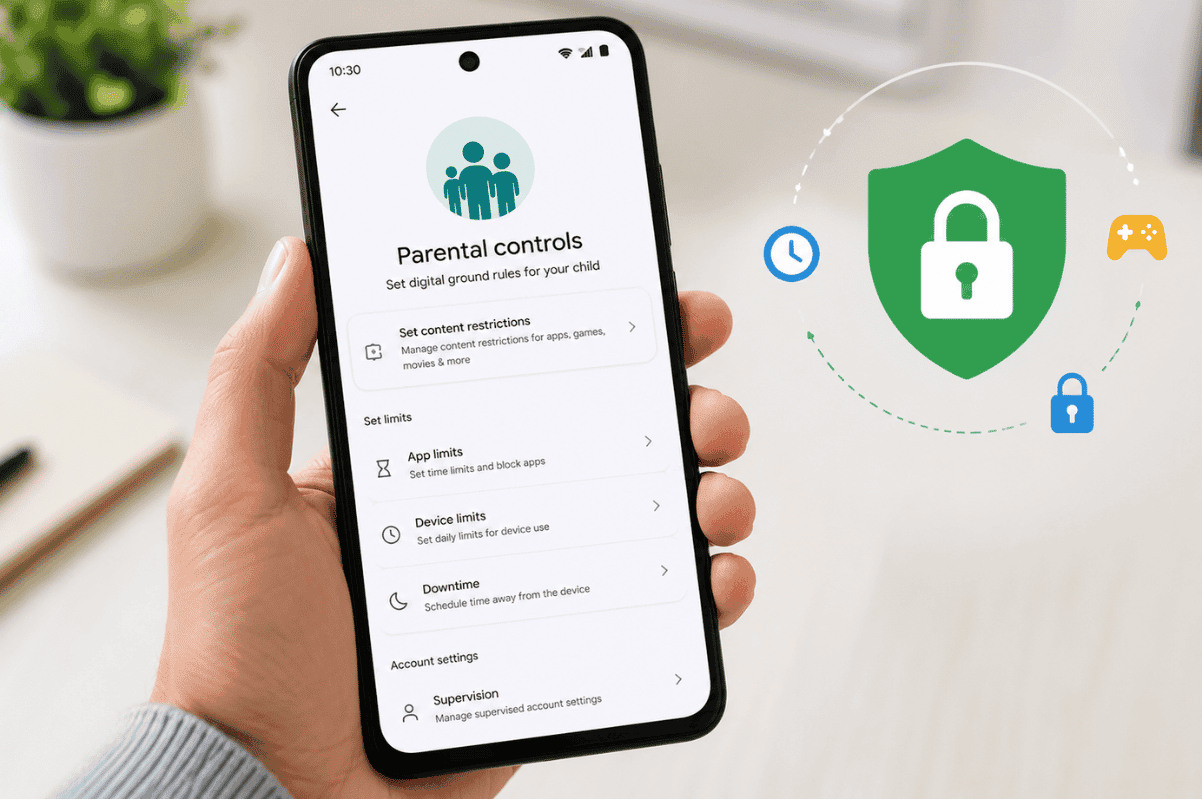
Disable Parental Controls or App Restrictions
Parental control apps and digital wellbeing settings can hide apps from users.
Check these settings:
- Open Settings
- Tap Digital Wellbeing & Parental Controls
- Review restricted apps
- Remove limitations if needed
If you use third-party launchers or security apps, they may also hide applications automatically.
Re-Enable Disabled Apps
Some apps are disabled instead of hidden.
To check:
- Open Settings
- Tap Apps
- Select See All Apps
- Look for apps marked as Disabled
- Tap the app and press Enable
This can restore system apps like Camera, Messages, or Google Play Store.
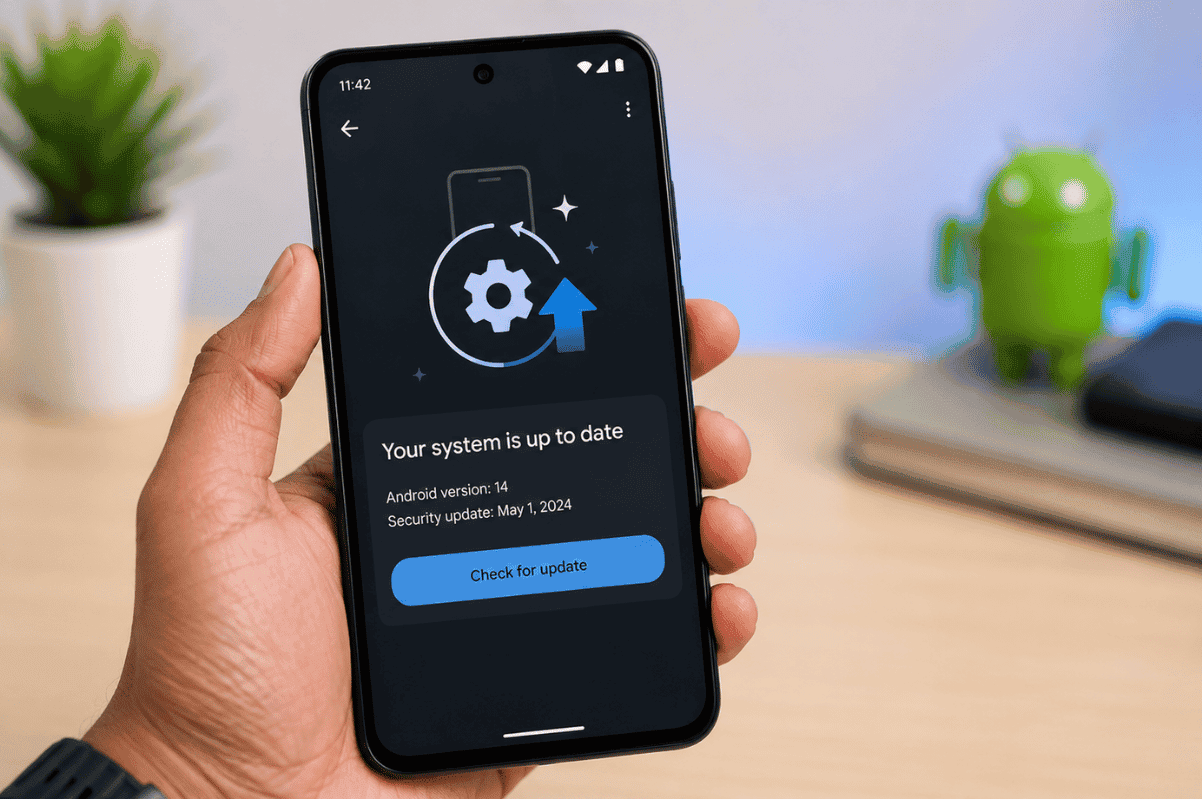
Update Your Android Software
Outdated Android software can sometimes create display or launcher issues.
To update:
- Open Settings
- Tap Software Update
- Install available updates
- Restart your device
Software updates often fix app visibility problems and improve phone performance.
Clear Launcher Cache
If your app icons are missing or not loading correctly, clearing launcher cache may help.
Steps:
- Open Settings
- Tap Apps
- Find your launcher app
- Tap Storage
- Select Clear Cache
Do not select Clear Data unless necessary because it may reset home screen layouts.
When to Visit a Phone Repair Shop
If apps continue disappearing after trying all these steps, your phone may have software corruption or storage issues. A professional technician can diagnose Android system problems safely.
At Fix Phone Mississauga, we help customers with Android troubleshooting, software recovery, and cell phone repair services for many major brands including Samsung, Google Pixel, LG, and Motorola.
Trying simple fixes at home first can save time, but expert help is sometimes the safest option when software problems keep returning.
