
If your computer does not have a webcam, or the built-in camera produces poor-quality video, your Android phone can be a useful alternative. Modern Android phones often have better cameras than older laptop webcams, and you can use the phone for video calls, online meetings, classes, and live streams.
This guide explains how to use an Android phone as a webcam on Windows and other compatible computers, along with practical solutions for common connection problems.
What You Need Before Starting
Before turning your Android phone into a webcam, prepare the following:
- An Android smartphone with a working camera
- A Windows PC or compatible computer
- A reliable USB cable or Wi-Fi connection
- A stable internet connection if you are using an online video service
- A webcam application if your Android version or computer requires one
Make sure your phone has enough battery before starting. Using the camera continuously can consume significant power.
Method 1: Use Your Android Phone as a Webcam With USB
A wired connection is usually the better choice when you want a stable video feed with minimal wireless interference.
Step 1: Connect Your Phone
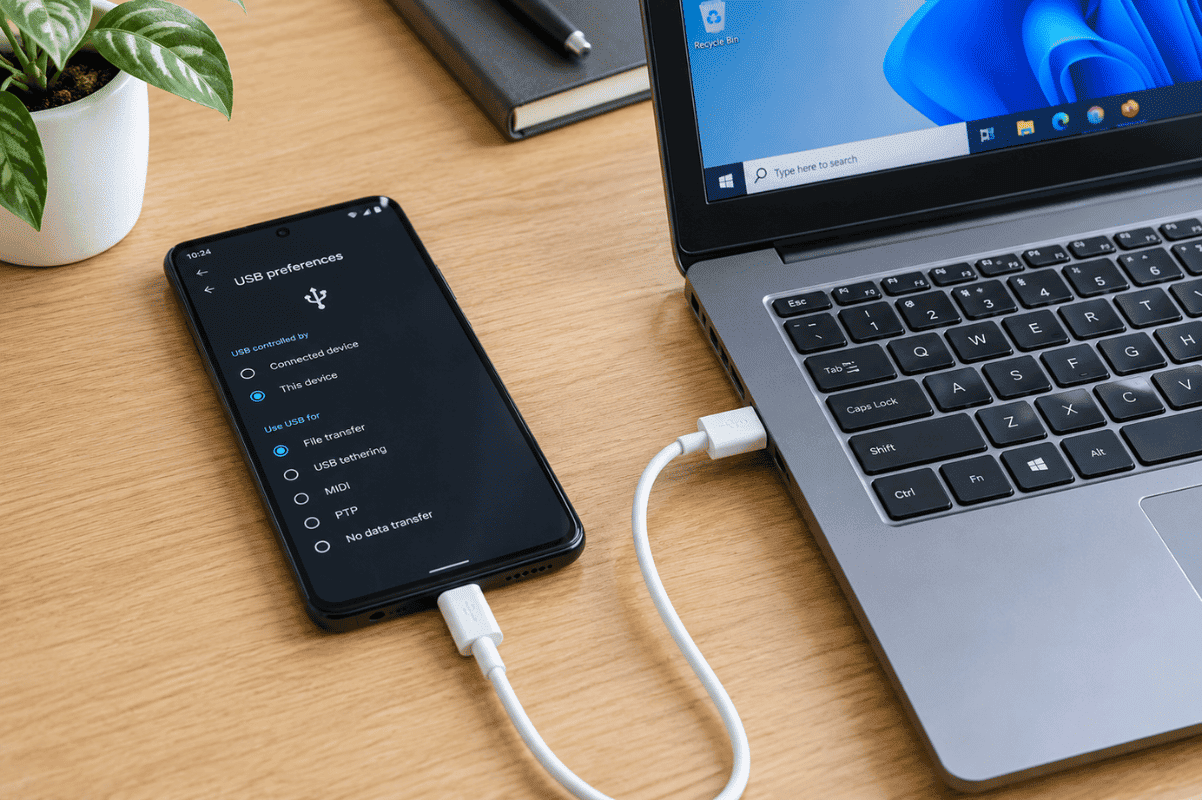
Connect your Android phone to your computer using a USB cable.
Use a good-quality data cable. Some USB cables are designed only for charging and will not properly transfer data.
Step 2: Select Webcam Mode
On supported Android devices, connect the phone to the computer and open the USB options from the notification panel.
Look for an option such as:
USB preferences → Webcam
Select the webcam option if it is available.
The exact wording and availability can differ depending on your Android version and phone manufacturer.
Step 3: Select the Phone Camera on Your Computer
Open the video calling application you want to use.
Go to its camera or video settings and look for your Android phone as an available camera.
Select it and check the preview.
If the video appears correctly, position your phone securely and start your call.
Method 2: Use a Webcam App
If your Android phone or computer does not provide a built-in webcam mode, you can use a third-party webcam application.
These apps generally require software on both the Android phone and computer. Depending on the app, the connection may work through USB, Wi-Fi, or another supported method.
When choosing an app, check:
- Whether it supports your Android version
- Windows compatibility
- USB support
- Video resolution options
- Privacy and permission requirements
- Whether the free version has limitations
Only install apps from reputable sources and review the permissions they request.
How to Get Better Video Quality
Simply using your phone as a webcam does not guarantee a better video. Camera placement and lighting make a major difference.
Use the Rear Camera
The rear camera on many Android phones provides better image quality than the front camera. If your setup allows it, use the rear camera.
Improve Lighting
Place a light in front of you rather than directly behind you. A window can provide good natural lighting during the day.
Avoid sitting with a bright window directly behind your head because your face may appear dark.
Keep the Phone Stable
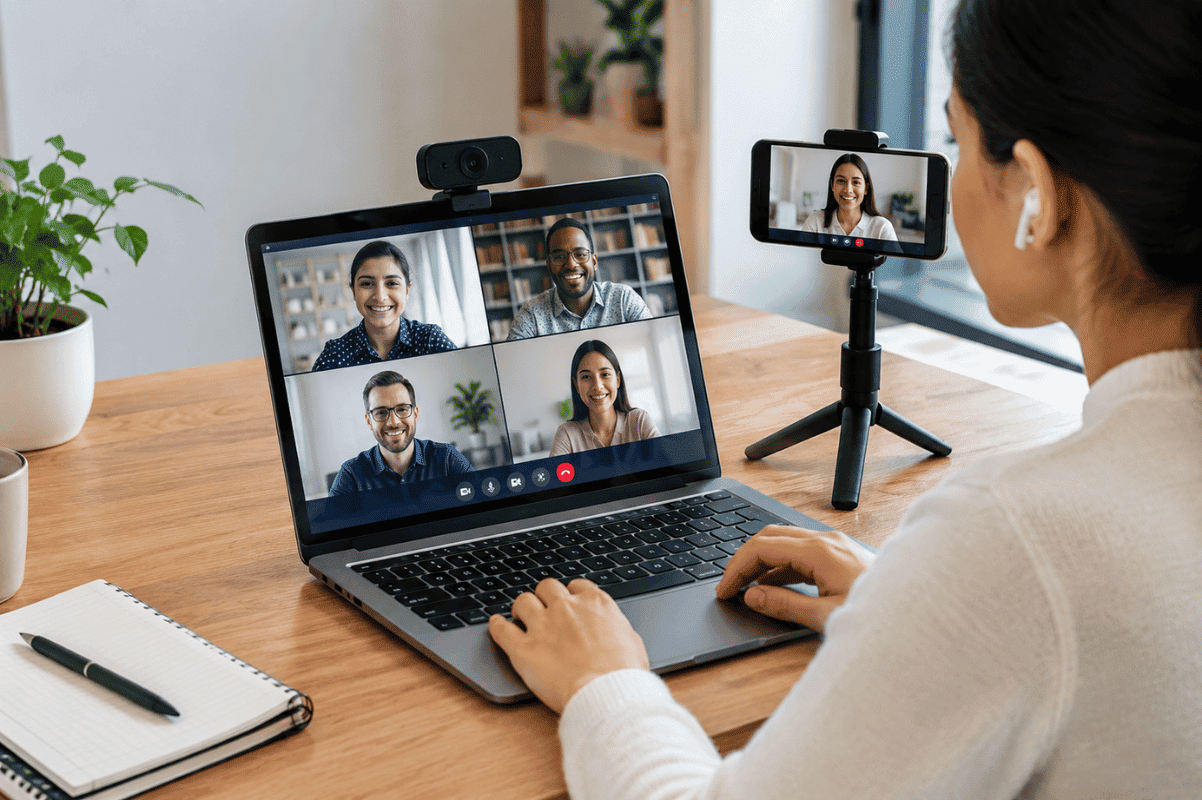
Use a phone stand, tripod, or another secure support. Do not balance the phone precariously on books or furniture.
Position the camera approximately at eye level for a more natural video angle.
Clean the Camera Lens
A dirty lens can make the image look blurry or hazy. Gently clean the camera lens with a soft microfiber cloth before starting your meeting.
Common Android Webcam Problems and Fixes
Computer Does Not Detect the Phone
Try these steps:
- Disconnect and reconnect the USB cable.
- Try another USB port.
- Use a different data-capable USB cable.
- Unlock the phone before connecting it.
- Check the USB connection settings.
- Restart both devices.
If the phone charges but does not transfer data, the cable may be the problem.
Camera Is Not Available in the Video App
Open the application’s video settings and manually select the Android webcam.
If the camera does not appear, close other applications that may be using the camera and restart the video application.
Video Is Lagging
If you are using Wi-Fi, move the phone closer to your router or switch to a USB connection if supported.
Close unnecessary apps on both devices and reduce video resolution if the webcam application allows it.
Phone Gets Hot
Camera streaming can place a continuous load on the phone. Remove unnecessary background apps, keep the phone away from direct sunlight, and avoid covering its ventilation area.
If the phone becomes unusually hot, disconnect it and allow it to cool.
Protect Your Privacy
A phone used as a webcam gives a computer or webcam application access to the camera feed. Check the application’s permissions before using it.
Do not install unknown webcam software simply because it promises high video quality. Use reputable applications and keep Android and your computer’s security software updated.
When you finish your meeting, disconnect the webcam connection and close the application.
When Your Phone Camera Still Does Not Work
If the camera produces a black screen, severe blur, unusual colours, or fails to open even in the regular Android Camera app, the problem may not be related to the webcam setup.
First, restart the phone, check for software updates, and test the camera using the standard Camera app. If the camera continues to malfunction, professional Cell phone repair may be necessary to identify whether the issue involves the camera module, connector, software, or another component.
For users dealing with persistent smartphone hardware problems in the Mississauga area, professional Phone repair Mississauga services can help diagnose the device before you spend money replacing the phone.
Using an Android phone as a webcam can be a practical way to improve video quality without buying a separate webcam. Start with the built-in Android webcam option if your device supports it. Otherwise, use a reputable webcam application and follow the connection instructions carefully.
For the best results, use a stable connection, good lighting, a clean camera lens, and a secure phone stand. If the phone’s camera itself is malfunctioning, troubleshoot the basic software and connection issues first. If those steps do not solve the problem, professional repair may be the next practical option.