Seeing a “No Command” message on your Android phone can be frustrating, especially if you were trying to restart or update your device. The good news is that this message doesn’t always mean your phone is damaged. In many cases, it’s simply waiting for a recovery command or indicating that something interrupted the recovery process.
This guide explains what the “No Command” screen means, why it appears, and the practical steps you can take to fix it yourself before visiting a repair shop.
What Does “No Command” Mean on Android?
The “No Command” screen usually appears when your Android phone enters Recovery Mode but cannot continue automatically.
Instead of loading the recovery menu, Android displays a robot lying down with the words “No Command.”
This usually means:
- The recovery menu hasn’t been opened yet.
- A software update failed.
- The recovery process was interrupted.
- The system encountered a software error.
- The recovery partition is temporarily unresponsive.
In most situations, your personal data is still safe.
Why Does the No Command Screen Appear?
Several situations can trigger this message.
1. Interrupted System Update
If your phone loses power or restarts during an Android update, Recovery Mode may display the No Command screen.
2. Failed Software Installation
Installing unofficial firmware or an incomplete software package can cause recovery errors.
3. Accidental Button Presses
Holding the wrong button combination while restarting your phone may boot it into Recovery Mode.
4. Software Bugs
Occasionally, Android system files become corrupted after updates or unexpected shutdowns.
5. System Cache Problems
Corrupted cache files may prevent Android from completing startup correctly.
How to Fix the No Command Screen
Try these solutions one at a time.
Method 1: Open the Recovery Menu
Many Android phones require an extra button combination to access Recovery Mode.
Try this:
- When you see No Command, press and hold the Power button.
- While holding Power, quickly press the Volume Up button once.
- Release both buttons.
On some devices, you may need to press Power + Volume Down instead.
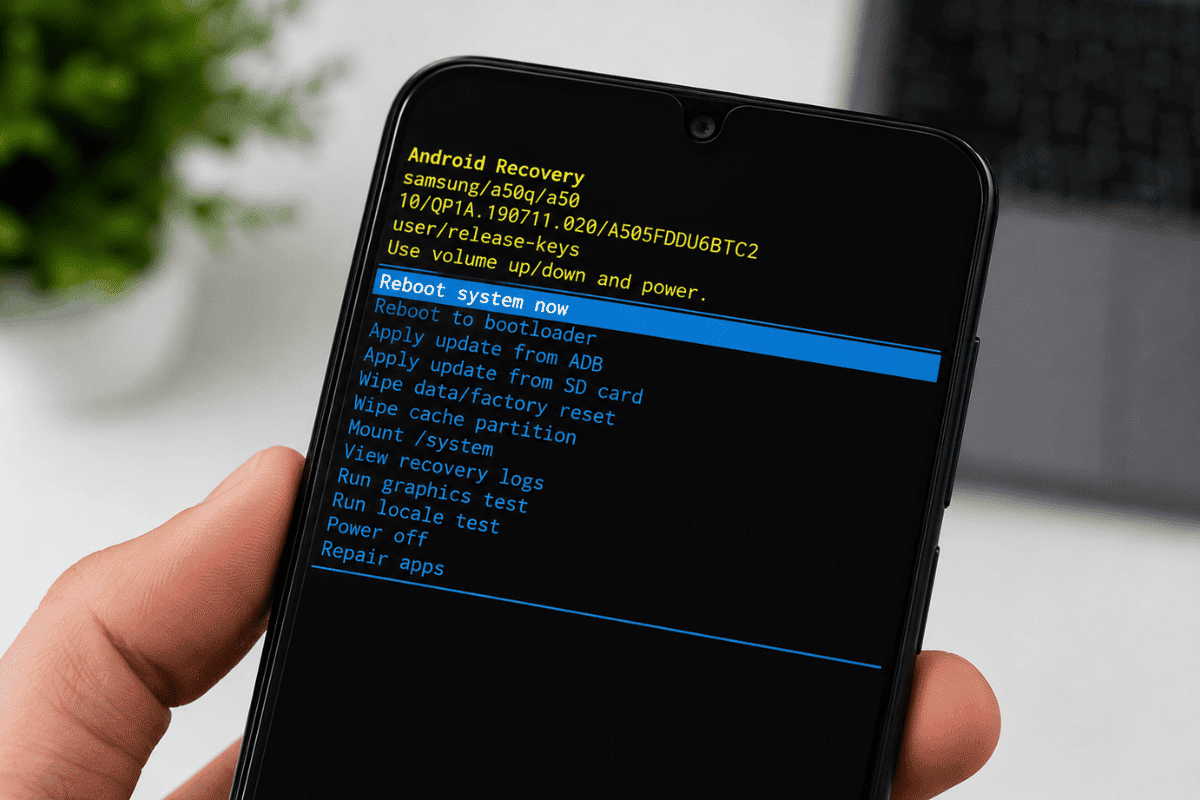
If successful, the Android Recovery menu will appear.
Method 2: Restart the Device
If Recovery Mode opens:
- Use the volume buttons to highlight Reboot system now.
- Press the Power button to confirm.
Your phone should restart normally.
Method 3: Wipe Cache Partition
If restarting doesn’t help:
- Open Recovery Mode.
- Select Wipe Cache Partition.
- Confirm the action.
- Restart the phone.
This removes temporary system files without deleting your personal data.
Method 4: Charge Your Phone
A low battery can interrupt updates and recovery.
Before trying additional fixes:
- Charge your phone for at least 30 minutes.
- Use the original charger if possible.
Then restart the recovery process.
Method 5: Factory Reset (Last Resort)
If none of the previous methods work, you may need to perform a factory reset.
Warning: This erases all data stored on your device.
Steps:
- Open Recovery Mode.
- Select Wipe data/factory reset.
- Confirm the action.
- Restart the phone.
Only use this option after trying the safer solutions first.
What If Recovery Mode Doesn’t Open?
If the button combinations don’t work, your phone may have a more serious issue.
Possible causes include:
- Corrupted operating system
- Faulty internal storage
- Damaged motherboard
- Failed software installation
- Hardware malfunction
These problems often require professional diagnosis.
Can You Prevent the No Command Error?
Yes. A few simple habits can reduce the chances of seeing this message.
Follow these tips:
- Keep your battery charged before updating Android.
- Install official software updates only.
- Avoid interrupting updates.
- Restart your phone regularly.
- Keep enough free storage available.
- Avoid installing unknown firmware.
Preventive maintenance reduces software-related startup problems.
When Should You Visit a Repair Shop?
Home troubleshooting works for many software issues, but professional help is recommended if:
- The phone remains stuck on the No Command screen.
- Recovery Mode won’t open.
- The device constantly restarts.
- The phone won’t power on.
- You suspect internal hardware damage.
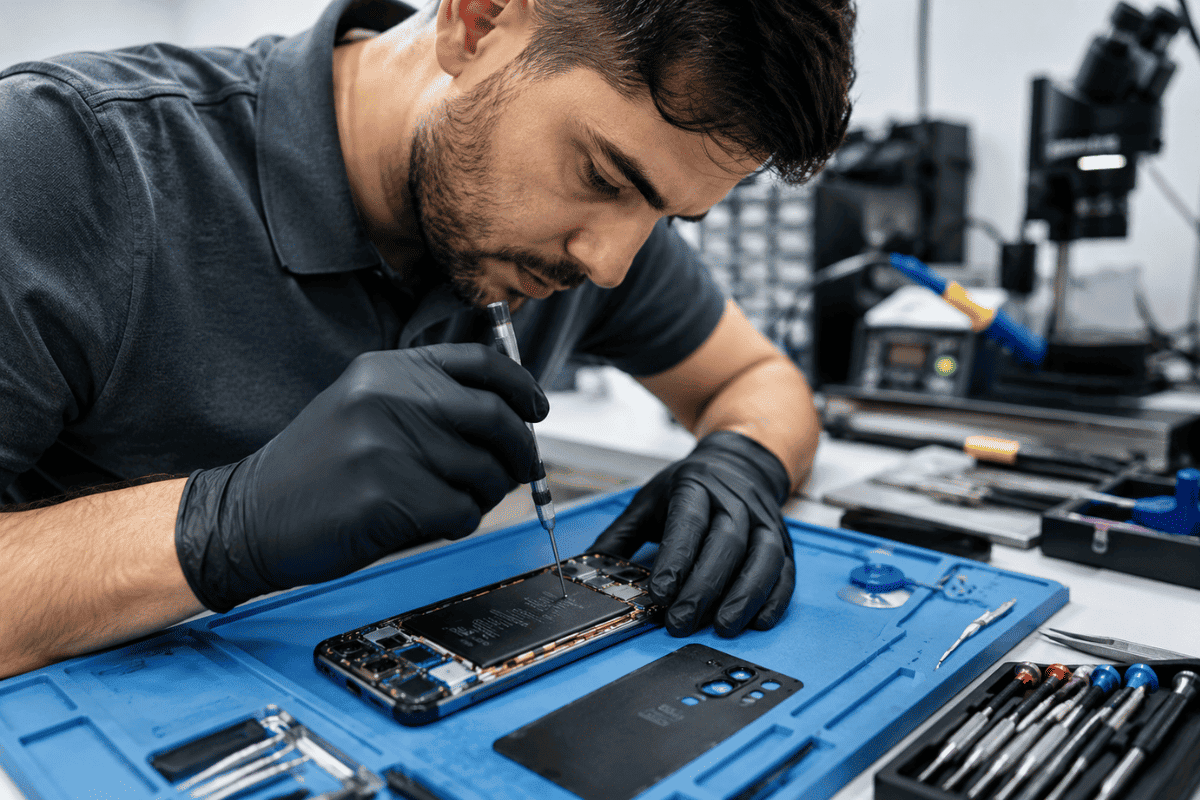
If software fixes don’t solve the problem, experienced Cell phone repair technicians can inspect the device for hardware or firmware issues.
For users in Ontario, a trusted Phone repair Mississauga service can diagnose the problem and recommend the most appropriate repair without unnecessary replacements.
The No Command screen on Android usually points to a recovery-related software issue rather than permanent damage. In many cases, simply opening the recovery menu, rebooting the device, or wiping the cache partition resolves the problem.
If your phone continues showing the error after trying these steps, the issue may involve corrupted firmware or failing hardware. At that point, visiting a qualified repair technician can help restore your device safely and prevent further complications.
Frequently Asked Questions
Does the No Command screen mean my phone is broken?
No. In many cases, it’s simply waiting for a recovery command or indicates a temporary software issue.
Will I lose my data?
Not unless you perform a factory reset. Restarting the phone or wiping the cache partition usually keeps your files intact.
Why does Android show No Command after an update?
An interrupted or failed update is one of the most common causes.
Can I fix it without a computer?
Yes. Most No Command issues can be resolved using Recovery Mode on the device itself.
When should I seek professional repair?
If the phone remains stuck after trying the recovery options or shows signs of hardware failure, professional assistance is recommended.