
A slow charging Android phone can be frustrating, especially when you need your device for work, navigation, or staying connected. In many cases, the problem is caused by something simple, such as a worn charging cable or background apps using too much power. Before assuming your phone needs repairs, try a few practical troubleshooting steps at home.
If none of these solutions work, there may be a hardware issue that requires professional Cell phone repair.
Check Your Charging Cable and Adapter
A damaged cable or low-quality charger is one of the most common reasons an Android phone charges slowly.
Look for:
- Frayed or bent cables
- Loose USB connectors
- Cracked charging adapters
- Third-party chargers that do not meet your phone’s charging requirements
If possible, test your phone with the original charger or a certified replacement.
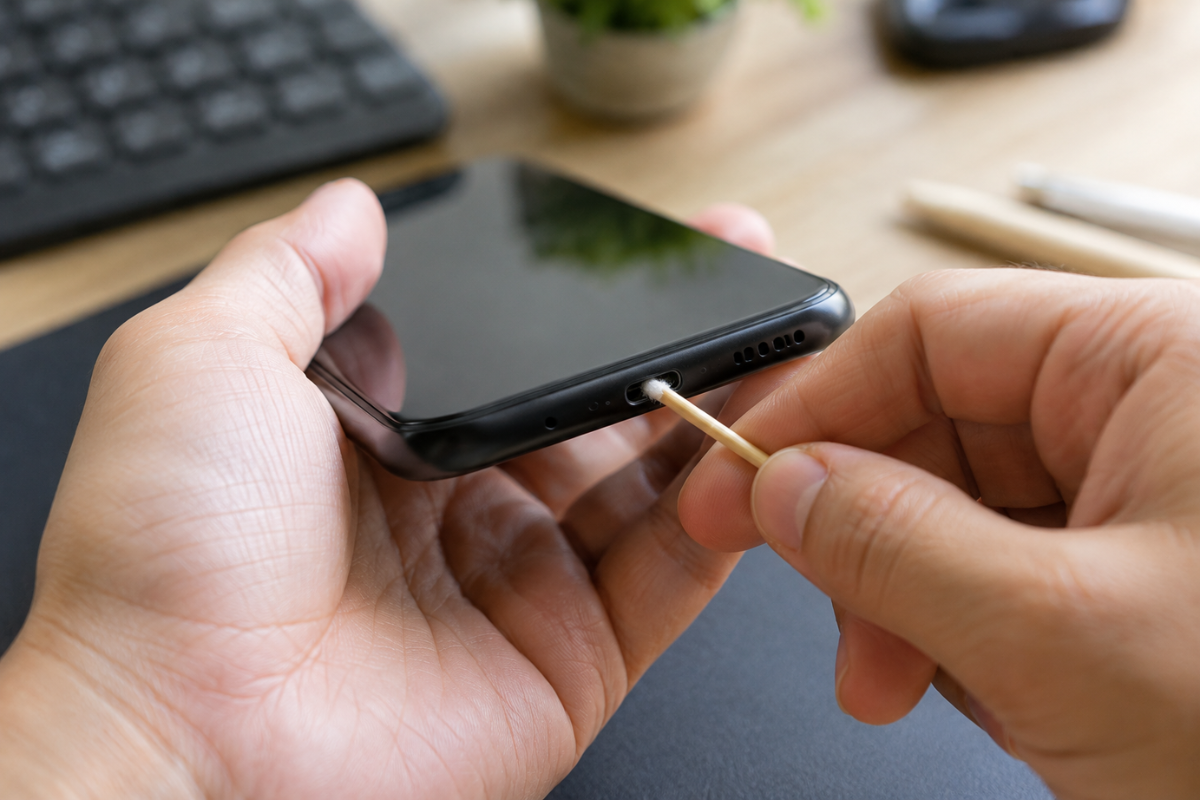
Clean the Charging Port
Dust, lint, and debris often collect inside the charging port, preventing a solid connection.
To clean it safely:
- Turn off your phone.
- Use a flashlight to inspect the port.
- Carefully remove lint with a wooden toothpick or a soft plastic cleaning tool.
- Avoid using metal objects, which can damage the charging pins.
After cleaning, reconnect the charger and check whether charging speed improves.
Close Power-Hungry Apps
Some apps continue running in the background and consume power while your phone is charging.
Try these steps:
- Close apps you are not using.
- Disable unnecessary background activity.
- Restart the phone to clear temporary processes.
This allows more of the incoming power to charge the battery instead of running applications.
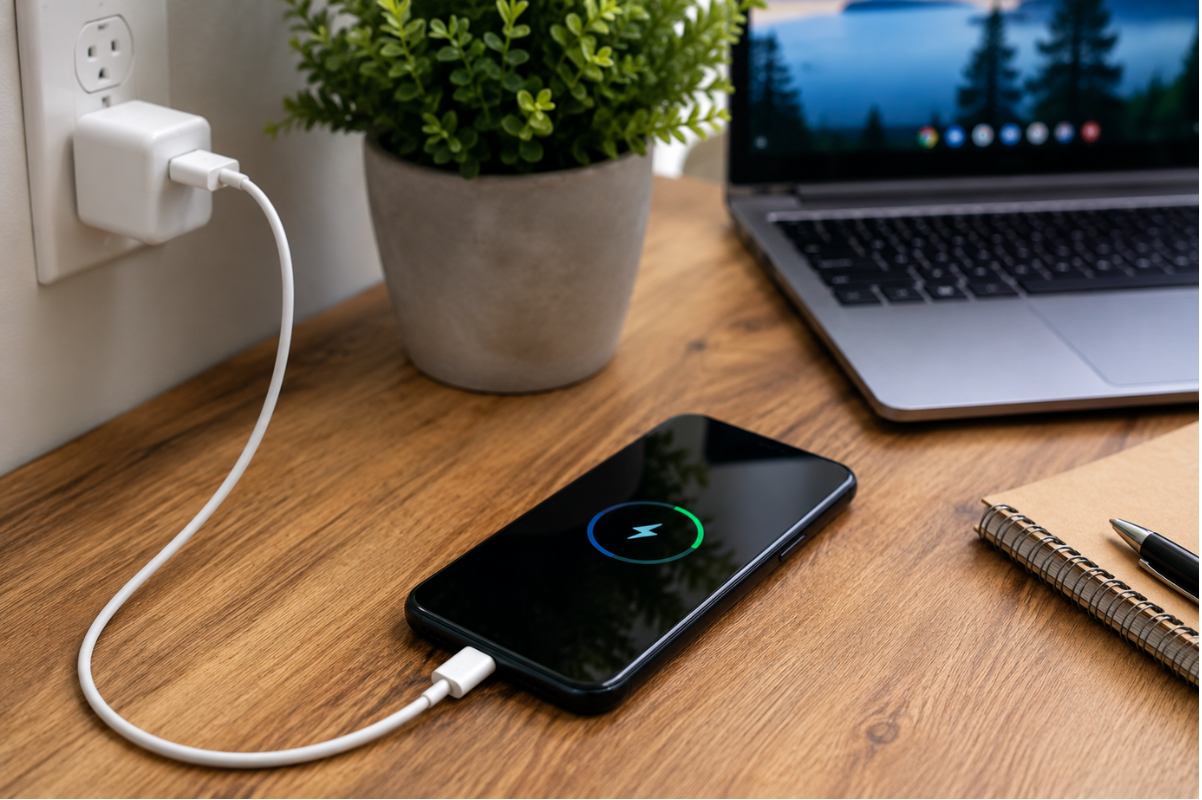
Use a Wall Outlet Instead of a Computer
Charging from a laptop or desktop USB port is usually slower than charging from a wall outlet.
Whenever possible:
- Plug your charger directly into a wall outlet.
- Avoid low-power USB hubs.
- Use a charger that supports your phone’s fast charging capability.
Check Battery Settings
Many Android phones include battery-saving features that affect charging performance.
Open your battery settings and check for:
- Battery optimization
- Adaptive Battery
- Charging limits
- Battery protection features
These settings can sometimes make charging appear slower, especially near a full battery.
Update Your Phone
Software bugs occasionally interfere with charging performance.
Go to:
Settings > Software Update
Install any available updates and restart your phone.
Manufacturers often release updates that improve battery management and charging stability.
Watch the Phone Temperature
Charging naturally slows when a phone becomes too hot.
Your device may overheat because of:
- Direct sunlight
- Gaming while charging
- Video streaming
- Thick protective cases
Move the phone to a cooler location and avoid heavy use until charging is complete.
Check Battery Health
If your Android phone is several years old, the battery may simply be wearing out.
Signs of a failing battery include:
- Slow charging every day
- Battery draining quickly
- Random shutdowns
- Phone becoming unusually warm
A worn battery cannot hold power efficiently and may eventually need replacement.
Try Safe Mode
A third-party app may be causing excessive battery usage.
Boot your phone into Safe Mode and connect the charger.
If charging returns to normal, one of your installed apps is likely responsible. Remove recently installed apps one at a time until the issue is resolved.
When Home Fixes Do Not Work
If your phone still charges slowly after trying these steps, the problem may involve internal hardware.
Possible causes include:
- Damaged charging port
- Faulty charging circuit
- Battery failure
- Water damage
- Internal motherboard issues
These problems require proper diagnosis and should not be repaired at home.
If your Android phone continues charging slowly or stops charging altogether, visit a trusted Phone repair Mississauga shop for professional testing and repair.
Most slow charging problems are caused by accessories, dirt in the charging port, overheating, or background apps. Start with the simple fixes first and test your phone after each step.
If the issue continues despite using a good charger and cleaning the charging port, it is time to have the device inspected by experienced technicians. Early diagnosis can prevent further damage and help restore normal charging performance.