Nothing halts productivity or ruins a family outing quite like opening your camera app only to be met with a black screen, an error message, or an unexpected freeze. When this happens immediately following a software update, it is easy to assume your phone is permanently broken.
Most post-update camera failures stem from software glitches, corrupted temporary files, or permission conflicts introduced during the installation process. Before panicking or looking into a costly replacement, you can try several home troubleshooting steps to restore your camera functionality. If these software fixes fail, professional hardware diagnostics at a trusted Android phone repair in Mississauga shop will get your device back on track.
Why Android Cameras Fail After an Update
When your operating system updates, background processes rewrite how apps communicate with your hardware drivers. If a temporary file gets corrupted during this installation, the system fails to load the camera sensor correctly. Similar to when Android apps crash after an update, common post-update issues include:
- Corrupted Cache Data: Residual data from the old operating system conflicts with the new camera application framework.
- Permission Resets: The update may have accidentally revoked camera permissions for your native app or third-party apps like Instagram and WhatsApp.
- Third-Party App Interference: Outdated camera filters or editing apps block hardware access, especially if you do not stop apps from running in the background on Android.
Step-by-Step Home Troubleshooting Guide
Follow these sequential steps to resolve the issue from home.
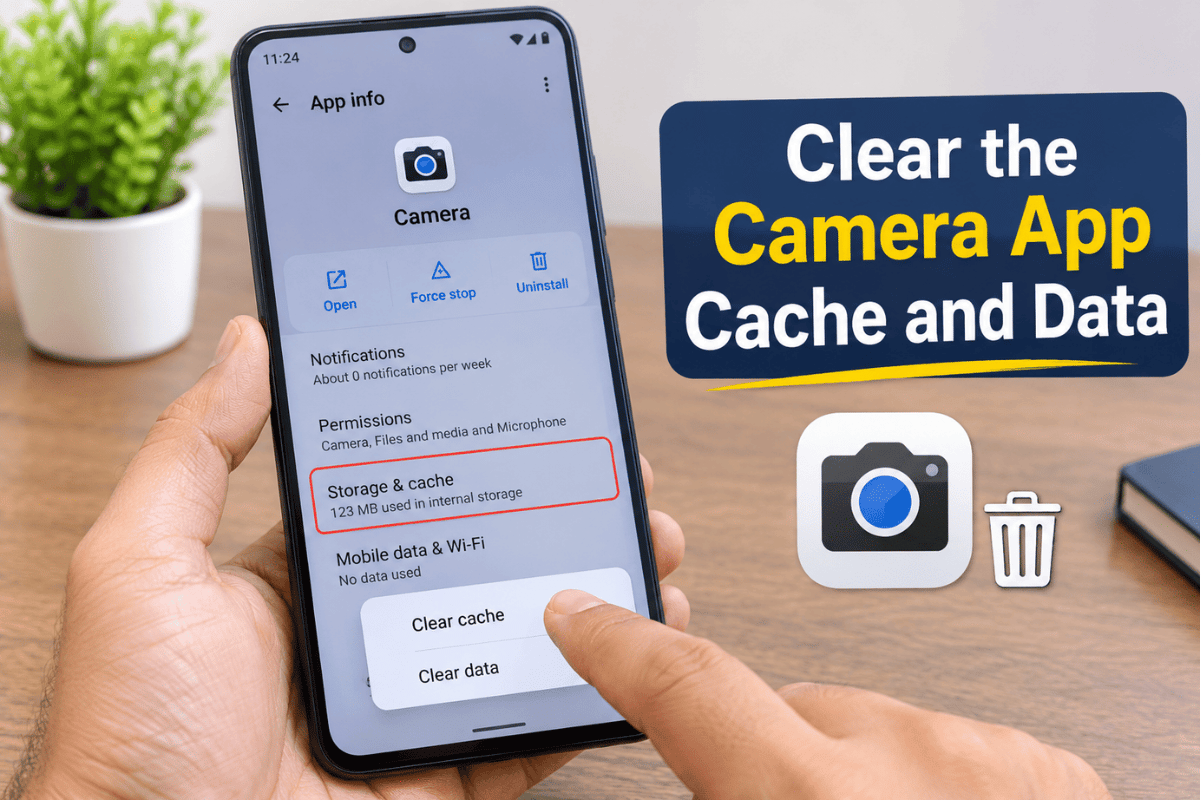
Step 1: Clear the Camera App Cache and Data
Corrupted cache files are the most frequent culprit behind post-update bugs. Clearing them forces the app to build a clean set of temporary files.
- Open your phone Settings and tap Apps or App Management.
- Scroll down and select Camera.
- Tap Storage, then tap Clear Cache.
- If the issue persists, return and tap Clear Data (this will not delete your photos, only reset camera settings). Verification: Open the camera app to check if the preview loads normally.
Step 2: Boot into Safe Mode
Third-party apps frequently conflict with newly updated camera drivers. Safe mode temporarily disables all downloaded apps so you can test the native camera.
- Press and hold your phone’s power button until the power menu appears.
- Tap and hold the Power Off icon until the Safe Mode prompt appears.
- Tap Safe Mode to confirm. Your phone will restart with “Safe Mode” displayed at the bottom of the screen.
- Open the camera app. If it works perfectly, a recently downloaded third-party app is causing the conflict. Uninstall your most recent apps one by one until the issue stops. Verification: Restart your phone normally to turn off Safe Mode on Android once testing is complete.
Step 3: Check and Reset App Permissions
Updates sometimes scramble privacy settings, preventing apps from accessing your physical camera hardware.
- Go to Settings > Privacy > Permission Manager.
- Tap Camera and ensure the native Camera app is set to Allow only while using the app.
- Repeat this check for any social media or video-calling apps experiencing camera errors. Verification: Launch the affected app and verify that the camera feed activates without permission warnings.
Step 4: Wipe the System Cache Partition
If app-level troubleshooting fails, clearing the system-wide cache via Android Recovery Mode clears out stubborn update glitches, though you may briefly encounter the No Command screen on Android before the recovery menu loads. (Note: Steps to enter recovery vary slightly by manufacturer, whether you need Samsung phone repair, Google Pixel phone repair, or Motorola support).
- Power off your phone completely.
- Press and hold the Power and Volume Down (or Volume Up) buttons simultaneously until the recovery menu appears.
- Use the volume buttons to highlight Wipe Cache Partition and press the Power button to select it.
- Select Reboot System Now once the process finishes. Verification: The phone boots normally, and the camera functions without freezing.
When Software Isn’t Enough: The Hardware Connection
If you have tried clearing caches, booting into Safe Mode, and wiping system partitions with no success, the root cause is likely hardware rather than software.
Sometimes, a software update pushes hardware components to their operational limits. If your phone sustained a minor drop or moisture exposure in the past—requiring water damage repair in Mississauga a flex cable connecting the camera module to the motherboard might be loose or damaged. Alternatively, a delicate image sensor may have failed coincidentally during the reboot process.
When hardware is physically compromised, software tweaks cannot fix the problem. Internal component alignment, camera module replacements, or micro-level troubleshooting require specialized tools and professional expertise.
When to Visit a Professional Repair Shop
Attempting to pry open a modern smartphone at home without professional equipment risks cracking the rear glass—leading to a costly cell phone backglass repair in Mississauga severing delicate ribbon cables, or ruining water-resistant seals. If home fixes do not restore your camera, professional intervention is necessary.
Bringing your device to a reliable local technician ensures an accurate diagnosis. Whether the issue requires reseating a loose internal connector, scheduling a professional phone camera repair in Mississauga, or specialized diagnostic testing, professional service saves you time and prevents further damage. For North American users looking for trustworthy diagnostics and transparent pricing, finding a dependable cell phone repair shop is the safest and most efficient path forward.
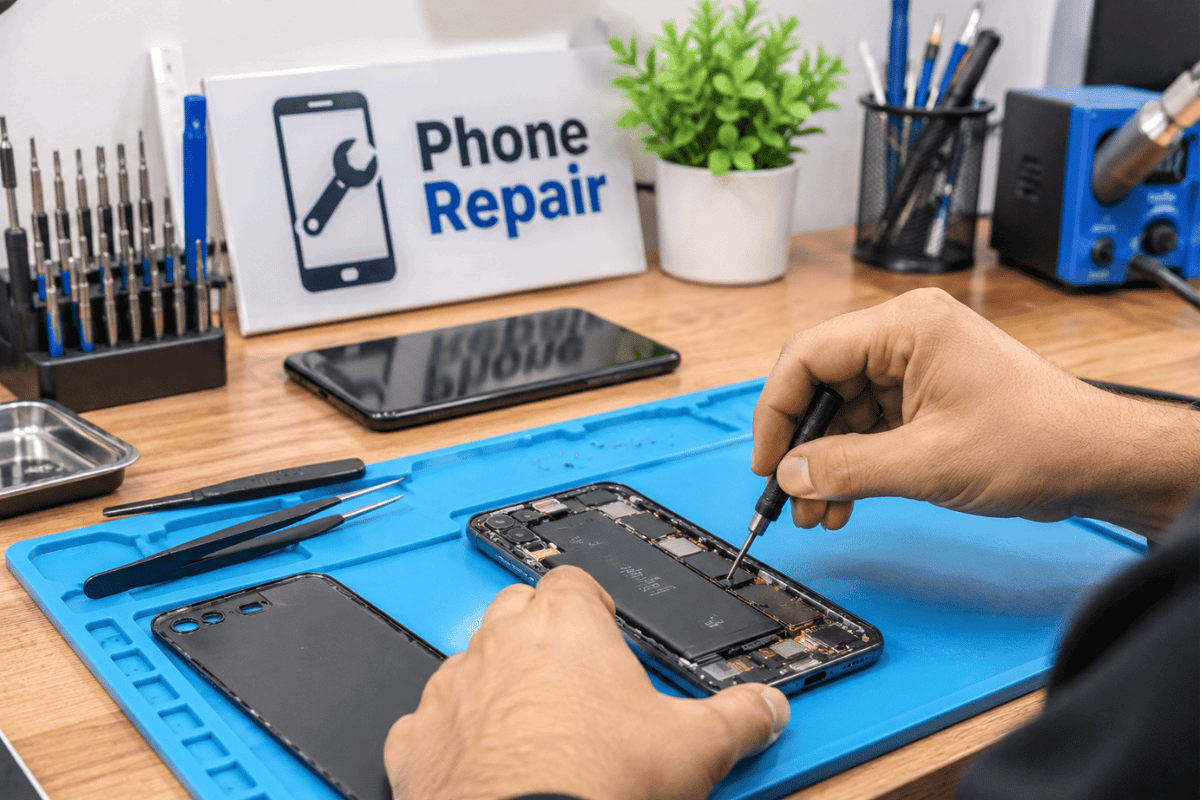
If you are located in the region, bringing your device to a trusted phone repair Mississauga center guarantees that experienced technicians can inspect your hardware, test your sensors, and restore full functionality safely.
Frequently Asked Questions (FAQ)
Will resetting my phone to factory settings fix a post-update camera error?
A factory reset fixes persistent deep-system software bugs by wiping all data and returning the phone to its original state. Back up your photos, contacts, and important files or transfer data from Android to Android before attempting a factory reset. If a factory reset does not fix the camera, the underlying issue is hardware-related.
Can a bad software update permanently break my camera sensor?
No. Software updates cannot physically alter or burn out hardware components. However, an update can expose a pre-existing hardware weakness or loose connection that was previously functioning under older system parameters.
How long does a professional camera repair take?
Most standard camera module replacements or internal connector repairs take between 30 minutes to a couple of hours, depending on the specific phone model and parts availability.