If people cannot hear you on Android calls, first unmute the call, turn Bluetooth off, remove the case, and record a short voice memo. If recordings also sound silent or distorted, a blocked or damaged microphone is more likely. If recordings are clear, check the calling app, audio route, or network. These steps can help you narrow down the cause before considering repair.
Why your Android microphone may fail during calls
The problem may come from a covered microphone opening, an active Bluetooth headset or car connection, a muted call, or a temporary software issue. If only calls are affected, the phone app, another calling app, or a weak connection may be involved. If recordings and calls both fail, the phone’s microphone hardware may be damaged.
Try these fixes in order
1. Check mute, case, and microphone openings
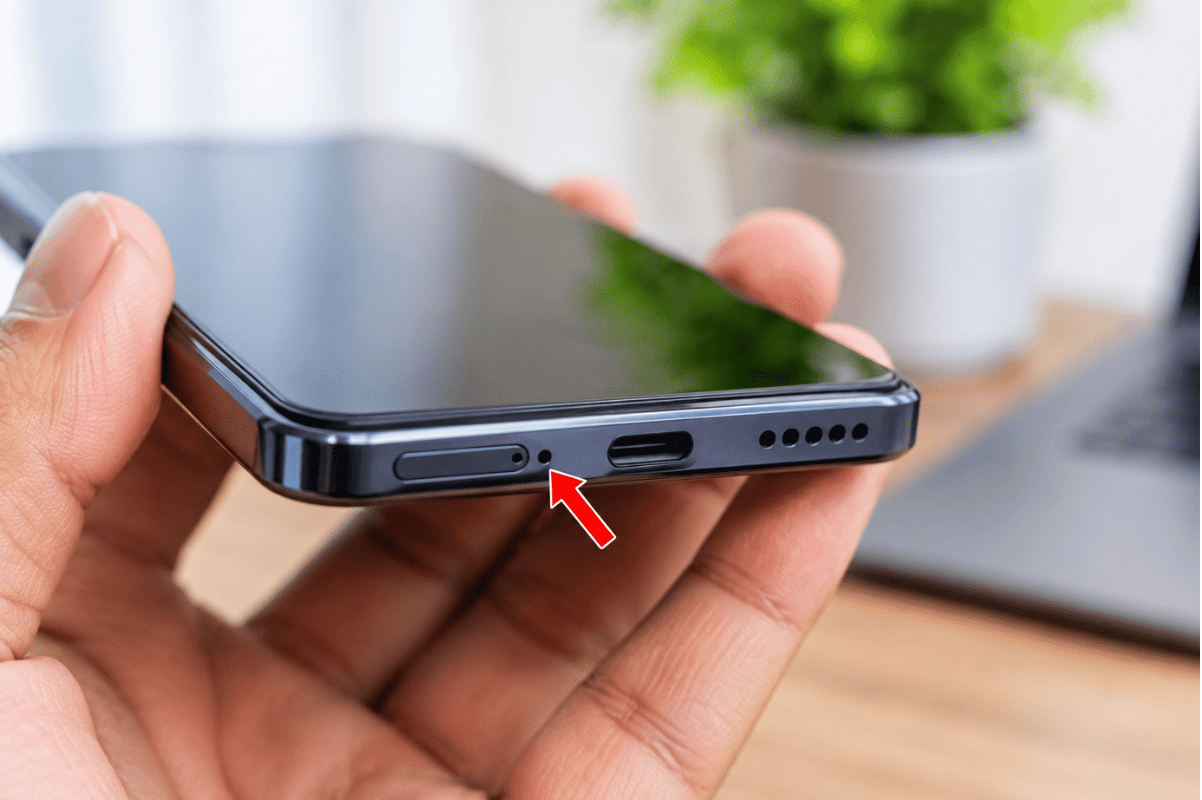
During a call, check that the microphone icon is not muted. Hold the phone so your hand does not cover its microphone openings. Remove the case or any accessory that could block them, then call again.
If you see dust around an opening, wipe the outside gently with a clean, dry, soft cloth. Don’t insert a pin or other object into a microphone hole, and don’t use compressed air.
Expected result: If the case or your grip was blocking the microphone, the other person should hear you more clearly.
2. Turn off Bluetooth and restart the phone
Your call audio may be routed through earbuds, a car, or another connected device. Turn Bluetooth off in Quick Settings, unplug any USB-C audio accessory, and restart the phone. Then test a regular phone call.
Expected result: If a connected device was receiving the call audio, your phone’s built-in microphone should work again. If the problem continues, try another contact or place a call from a different location. Trouble with one person or one location may point to their connection or local network conditions. If your Android Bluetooth keeps disconnecting, troubleshoot that connection issue separately.
3. Compare calls with recordings
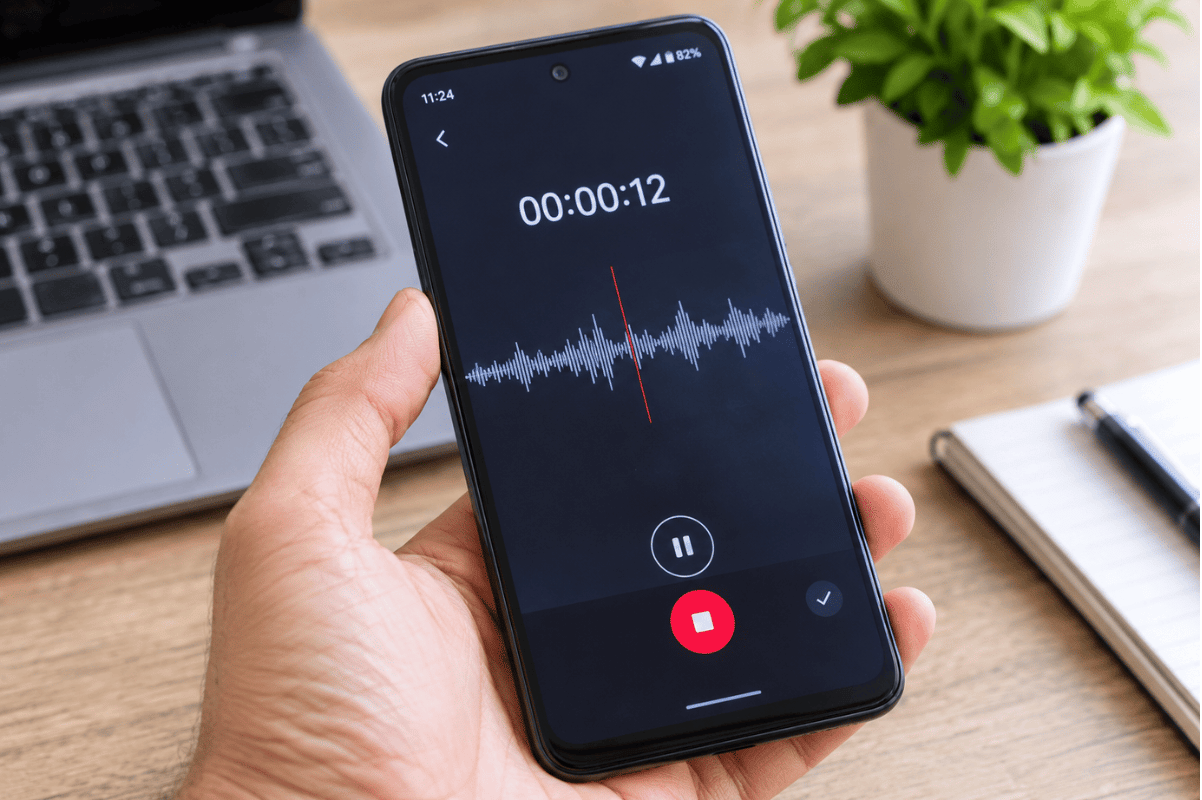
Use the phone’s Recorder app, or another built-in voice recording app, to record and play back a short clip. If your phone does not have a suitable recorder, you can explore sound recording software for Android to test your microphone. You can also record a short video and check its sound.
If the recordings are clear but regular calls are not, the issue may be with the Phone app, call routing, or network rather than a general microphone failure. If both calls and recordings sound poor, the microphone may be obstructed or damaged. A recording test can help narrow down the issue, but it cannot rule out every fault: some phones use different microphones for different functions. Google’s Pixel guidance, for example, uses Recorder and Camera recordings to check different microphones.
4. Check microphone access and updates
For app-based calls, such as WhatsApp or Meet, open Settings > Apps > [calling app] > Permissions > Microphone and allow access if it is blocked. Menu names vary by phone. On Android 12 and later, check that system-wide microphone access is enabled in Quick Settings.
If the problem affects only one app, update it and try another calling app. If calls fail across apps, check for Android system updates and restart the phone afterward. If the microphone problem started after an update and other apps are also affected, you may need to fix Android apps crashing after an update.
Expected result: Restoring a blocked permission may fix calls in that app. If permissions are already allowed and the issue occurs across apps, continue to the next step.
5. Use Safe Mode if the issue began after installing an app
A downloaded app, especially one that records calls or manages audio, can interfere with calling. Safe Mode temporarily disables downloaded apps so you can check whether one is causing the problem. The steps vary by manufacturer; Samsung Galaxy phones, for example, can enter Safe Mode through the power menu.
If calls work in Safe Mode, uninstall recently added apps one at a time and retest. Once testing is complete, turn off Safe Mode on Android and check whether normal calling works again. If the microphone still fails in Safe Mode, a downloaded app is less likely to be the cause.
When to stop troubleshooting
Arrange a professional inspection if calls and recordings remain unclear after these checks, or if the problem began after a drop or liquid exposure. A technician can check for damage to the microphone or its internal connections. Professional phone microphone repair in Mississauga may be necessary if the microphone hardware is damaged. If the issue started after contact with liquid, consider a phone water damage repair service to assess possible internal damage. Don’t open the phone yourself. If the phone is unusually hot, has a swollen battery, or exposes internal parts, stop using it and seek qualified service.
A factory reset erases data and usually isn’t a useful early microphone fix. Consider one only after backing up your data and following guidance from your phone’s manufacturer or carrier.
For prevention, use a case made for your phone model, keep microphone openings clear, and keep Android and calling apps updated. If you need Android phone repair in Mississauga, We Fix Phones is a local option for an Android phone assessment. For phone repair in Mississauga, ask a repair provider to check the microphone before replacing parts.