Missing important text messages, work emails, and calendar reminders can be frustrating, especially when your Android phone stays completely silent. If you find your Android notifications not showing on the lock screen, status bar, or home screen, the problem is often caused by a notification setting, battery restriction, or application issue.
Android devices have several features designed to manage alerts, conserve battery power, and protect your privacy. However, these settings can sometimes prevent notifications from appearing when you expect them. A recent Android update, accidentally disabled app permission, or restricted background activity may also interrupt normal notifications.
The good news is that most notification problems can be resolved without replacing your phone or performing a factory reset. This guide explains 10 practical troubleshooting steps for Samsung Galaxy, Google Pixel, Motorola, OnePlus, and other Android devices.
Quick Troubleshooting Guide
Before trying every solution, use this table to identify the setting most likely responsible for your notification problem.
| Notification Problem | Possible Solution |
| No notifications from any app | Check Do Not Disturb |
| Only one app has notification issues | Check app permissions |
| Notifications arrive late | Check battery restrictions |
| Notifications disappear on mobile data | Check background data |
| No alerts appear on the lock screen | Review lock screen settings |
| Notifications appear without sound | Check sound and vibration |
| Notifications stopped after an update | Update apps and Android |
| One app keeps failing | Clear its cache |
1. Turn Off Do Not Disturb Mode
Do Not Disturb (DND) is one of the first settings to check when your Android phone stops displaying notification sounds or pop-up alerts.
This feature is designed to silence interruptions during meetings, sleep, or other activities. However, scheduled settings can activate automatically and prevent notifications from making sounds or appearing as expected.
How to turn off Do Not Disturb:
- Swipe down from the top of your Android screen to open Quick Settings.
- Look for the Do Not Disturb icon.
- If it is enabled, tap it to turn it off.
- Press and hold the icon to access additional settings.
- Check whether automatic schedules, such as Bedtime or Driving Mode, are enabled.
- Disable any schedules you no longer need.
Test your phone by asking someone to send you a message. If notifications start appearing again, an active DND setting was likely responsible.
2. Check App-Specific Notification Permissions
Android allows users to control which applications can send notifications. If you accidentally denied permission when installing an app or opening it for the first time, you may not receive its alerts.
This is particularly common on Android 13 and newer versions, where applications generally need permission to send notifications.
How to enable app notifications:
- Open your phone’s Settings.
- Tap Apps or Apps & notifications.
- Select See all apps if necessary.
- Choose the application that is not sending notifications.
- Tap Notifications.
- Make sure the Allow notifications toggle is enabled.
- Review individual notification categories and enable the alerts you want to receive.
For example, Gmail may have notifications enabled for general activity but disabled for new emails in a specific account category.
On Samsung Galaxy devices, you may also need to enable Manage notification categories for each app under Settings > Notifications > Advanced settings before individual categories become visible.
Once you have checked the settings, reopen the application and test whether new notifications arrive.
3. Remove Battery Restrictions for Important Apps
Android uses battery management features to reduce power consumption when applications are running in the background.
Some manufacturers, including Samsung, OnePlus, and Motorola, offer additional battery management options that can restrict background activity. If an application cannot run or sync properly in the background, its notifications may arrive late. If you previously tried to stop apps from running in the background on Android, check whether important apps were restricted.
How to check app battery settings:
- Open Settings on your phone.
- Select Apps.
- Choose the application experiencing notification problems.
- Tap Battery or App battery usage.
- Review its current battery management setting.
- If necessary, change the setting from Restricted to Optimized or Unrestricted, depending on your device and the app’s requirements.
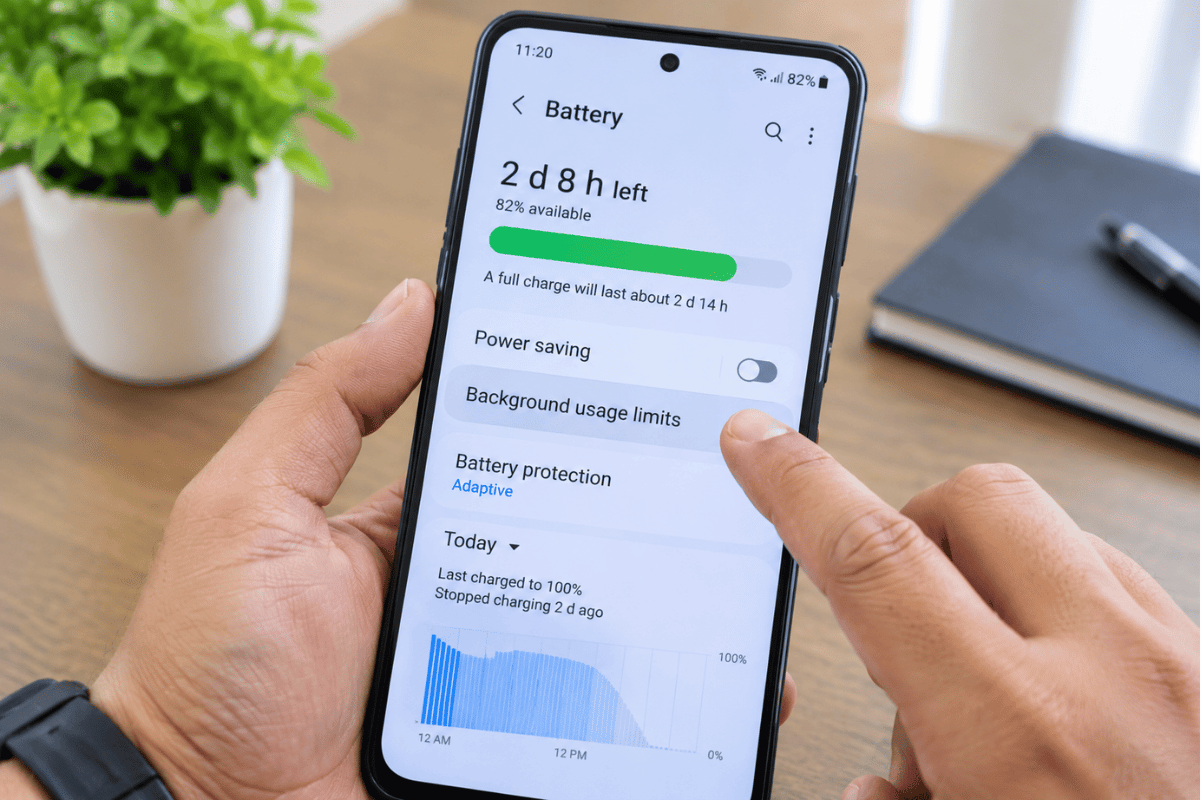
For Samsung Galaxy users, check the following additional settings:
- Open Settings.
- Select Battery and device care or Battery.
- Tap Background usage limits.
- Open the Sleeping apps and Deep sleeping apps lists.
- Remove important messaging or email applications if they have been added unnecessarily.
Unrestricted battery access can increase battery consumption, so use it selectively for applications that need reliable background notifications.
4. Allow Background Data Usage
Your Android phone needs an internet connection to receive many notifications. Even when Wi-Fi or mobile data appears to be working, an application may be restricted from using data in the background.
This can cause messaging applications, email services, and social media platforms to stop receiving updates when you are not actively using them.
How to allow background data:
- Open Settings.
- Select Apps.
- Choose the application with notification problems.
- Tap Mobile data or Mobile data & Wi-Fi.
- Enable Allow background data usage.
- If available, enable Allow data usage while Data Saver is on.
You should also check whether Data Saver is enabled across your entire phone.
Go to Settings > Network & internet > Data Saver or the equivalent option under Connections on Samsung devices.
If background data is restricted, turn off Data Saver temporarily and test your notifications again. If the connection itself is unreliable, investigate slow internet on your Android phone as well.
5. Check Lock Screen Notification Settings
Sometimes your Android phone receives notifications correctly, but they do not appear on the lock screen.
This usually happens because of privacy settings or display preferences that hide notification content when the device is locked.
How to show notifications on your lock screen:
- Open Settings.
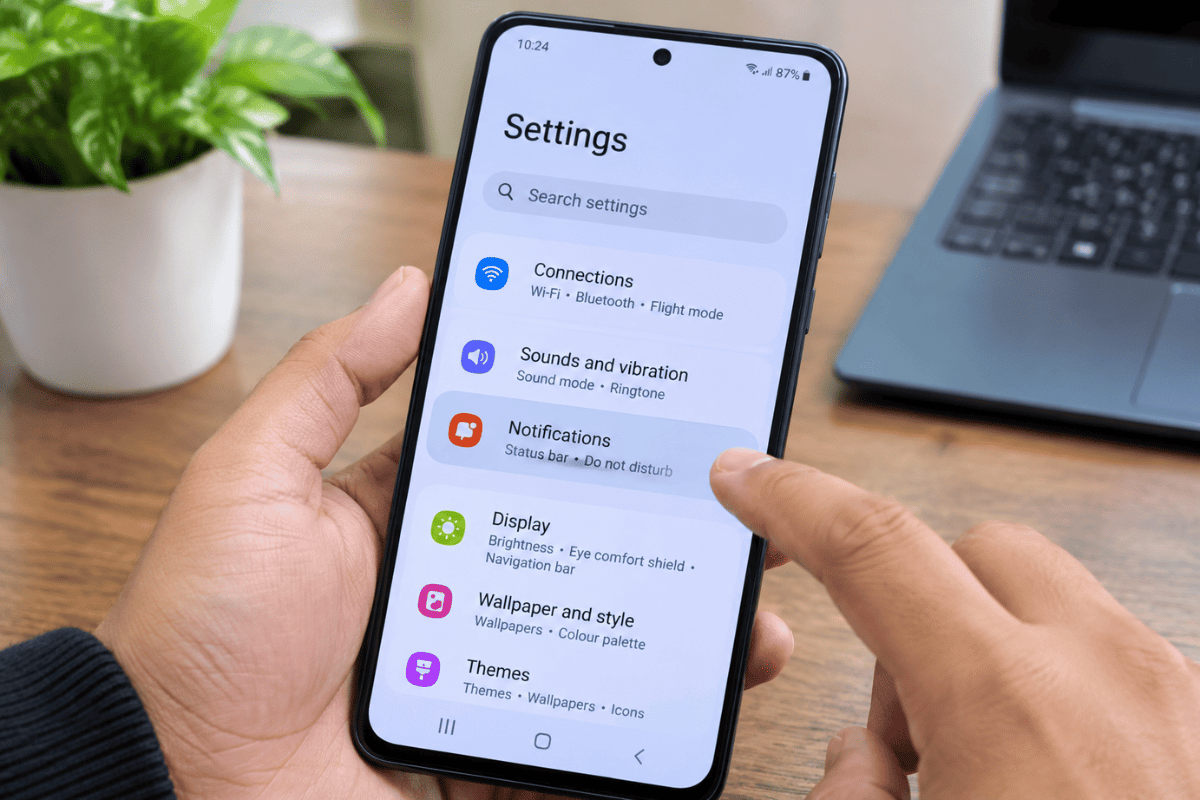
- Tap Notifications.
- Find Notifications on lock screen.
- Select an option that allows notifications to appear.
- If your phone offers a privacy option, choose whether to display full notification content or hide sensitive information.
- Check whether silent notifications are hidden from the status bar.
On Samsung devices, these settings may be available under Settings > Notifications > Lock screen notifications.
You can also review Always On Display settings if you want notifications to appear while your screen is otherwise inactive.
After changing these settings, lock your phone and ask someone to send you a test message.
6. Check Sound, Vibration, and Notification Categories
If notifications appear on your screen but your phone does not make a sound or vibrate, the problem may be related to alert settings rather than notification delivery.
Android allows users to change notification sounds for different apps on Android and assign alert behaviours to individual notification categories.
How to check notification sounds:
- Open Settings.
- Select Sound & vibration.
- Check the notification volume.
- Make sure the phone is not set to silent mode.
- Open Apps and select the affected application.
- Tap Notifications.
- Select the relevant notification category.
- Check whether its alert style is set to Alerting rather than Silent.
- Verify that a notification sound is assigned if you want audible alerts.
Also check whether your phone is connected to Bluetooth headphones, a smartwatch, or another audio device that may affect where notification sounds are played.
7. Turn Off Bedtime Mode and Review Automatic Routines
Digital Wellbeing and other Android features can automatically change how notifications behave during specific hours.
For example, Bedtime Mode may activate at night and combine screen changes with Do Not Disturb settings. Samsung devices also offer Modes and Routines that can automatically adjust notification behaviour.
How to check Bedtime Mode:
- Open Settings.
- Select Digital Wellbeing & parental controls.
- Tap Bedtime mode.
- Check whether the feature is currently active.
- Review its schedule and notification-related settings.
- Disable or adjust the schedule if it is interfering with alerts.
Samsung users should also check Settings > Modes and Routines for any active sleep, work, or driving routines.
If notifications work normally after disabling an unwanted routine, you have likely identified the cause.
8. Clear the Application Cache
Temporary files help Android applications load information faster. However, damaged or outdated cached files can sometimes contribute to application performance problems.
If notifications are missing from just one application, clearing its cache is a useful troubleshooting step.
How to clear an app’s cache:
- Open Settings.
- Tap Apps.
- Select the application experiencing problems.
- Open Storage & cache or Storage.
- Tap Clear cache.
- Restart the application.
- Check whether notifications are working normally.
Avoid selecting Clear storage or Clear data unless necessary. These options can remove locally stored application information and may require you to sign in again.
Remember that clearing the cache does not guarantee that notification problems will be fixed. If the application has a separate account, synchronization, or server issue, you may need to investigate those settings as well.
9. Check Date and Time Settings
Incorrect date and time settings can interfere with certain applications, account synchronization, and secure network connections.
If your phone’s clock is significantly out of sync, correcting it is a useful troubleshooting step.
How to enable automatic date and time:
- Open Settings.
- Select System or General management on Samsung devices.
- Tap Date & time.
- Enable Set time automatically.
- Enable Set time zone automatically, if available.
- Restart your phone and test your notifications.
Automatic date and time settings allow your device to synchronize its clock with the available network time service.
10. Update Android and Your Applications
Outdated applications and operating system software can sometimes contain bugs that affect background synchronization and notification delivery.
If your notification problems started after a recent software update, check whether another update is available. If other applications are also malfunctioning, check the possible causes of Android apps crashing after an update.
How to update your Android applications:
- Open the Google Play Store.
- Tap your profile picture.
- Select Manage apps & device.
- Check for available updates.
- Tap Update all or update the affected application individually.
How to check for Android system updates:
- Open Settings.
- Scroll down and select System.
- Tap Software update or System update.
- Check for available updates.
- Follow the on-screen instructions to install them.
Samsung users can usually find this option under Settings > Software update > Download and install.
After updating your phone, restart it and test whether notifications are working correctly.
When Android Notification Problems May Require Professional Repair
Most Android notification problems are related to software settings, application permissions, or connectivity. However, certain physical hardware problems can affect how your phone receives or alerts you about incoming activity.
If you have checked the relevant settings and your phone continues experiencing problems, professional diagnostics may help identify the underlying issue.
Here are some hardware-related warning signs to look for:
- Damaged Loudspeaker: If visual notifications appear but your phone produces no sound, a damaged speaker or audio component may be responsible. This is especially worth investigating if sound problems started after a drop or liquid exposure. Persistent audio issues may require phone speaker repair in Mississauga.
- Faulty Vibration Motor: If your phone receives notifications but no longer vibrates, the vibration motor or its connection may need inspection.
- Antenna or Connectivity Damage: If Wi-Fi or cellular connections repeatedly disconnect, damaged antenna components or other connectivity-related hardware may require professional testing.
- Liquid Damage: Moisture inside a phone can corrode internal connectors and affect several components. If notification issues begin after liquid exposure, consider professional water damage repair in Mississauga rather than continuing to use a potentially damaged device.
- Motherboard Damage: Severe physical damage or liquid exposure can affect multiple internal circuits. A technician may need to perform board-level diagnostics to identify the problem.
Keep in mind that a damaged speaker or vibration motor usually affects how you receive alerts, not whether the notifications themselves are delivered. Similarly, antenna damage is more likely to cause broader connectivity problems.
If notifications are missing only from one application, hardware failure is less likely than an application or software issue.
Get Professional Phone Repair in Mississauga at WeFixPhones
If your Android notifications are still not working after trying these troubleshooting steps, professional Android phone repair in Mississauga may help identify the cause.
At WeFixPhones, we help customers in Mississauga diagnose and resolve a range of smartphone problems. Our technicians can investigate software-related issues, connectivity problems, damaged speakers, faulty vibration motors, and other hardware concerns affecting your device.
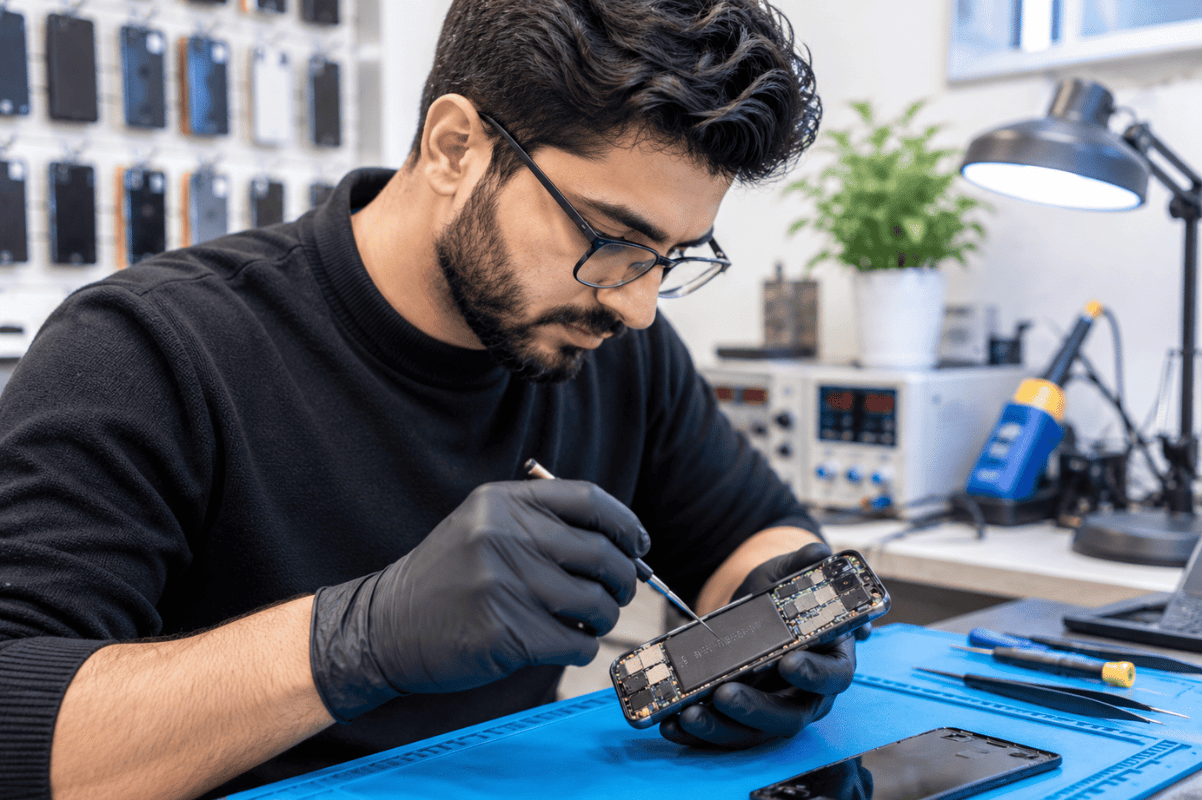
Whether you use a Samsung Galaxy, Google Pixel, Motorola, or OnePlus, identifying the actual cause is the first step toward finding the right repair solution.
Our diagnostic approach helps determine whether your notification problem is related to software settings, application behaviour, or damaged internal components before recommending a repair.
If you need reliable cell phone repair, visit WeFixPhones or explore our services at fixphonemississauga.ca.
For dependable phone repair in Mississauga, contact WeFixPhones today and get your device checked so you can stay connected without missing important alerts.
Frequently Asked Questions
1. Why are my Android notifications not showing up?
Android notifications may stop appearing because Do Not Disturb is enabled, app notification permissions are disabled, battery restrictions prevent background activity, or lock screen settings hide alerts. Check these settings first before considering a hardware problem.
2. Why am I only receiving notifications when I open an app?
This often happens when Android restricts an application’s background activity or data usage. Check its battery settings, allow background data, and make sure the application can synchronize while running in the background.
3. Why are my Samsung notifications not showing on the lock screen?
Your Samsung phone may have lock screen notification settings disabled or configured to hide alerts. Open Settings > Notifications > Lock screen notifications and choose an option that allows notifications to appear.
4. Will clearing the app cache delete my messages?
No. Clearing an application’s cache normally removes temporary files rather than personal messages or account information. However, selecting Clear data or Clear storage can remove locally stored information and may sign you out.
5. Can a damaged phone speaker cause notification problems?
A damaged speaker can prevent audible notification alerts, even when the notifications are successfully received. If your phone displays notifications but produces no sound, the speaker or audio components may need inspection.
6. Where can I get Android phone repair in Mississauga?
If software troubleshooting does not resolve your issue, WeFixPhones in Mississauga can help investigate Android phone problems. Visit fixphonemississauga.ca to learn more about available repair services.