
If your Android phone is stuck on the Samsung, Google, or other manufacturer logo, try a forced restart using the buttons for your model. A forced restart keeps your photos, apps, and files intact. If an update is visibly progressing, let it finish first. If the phone is unusually hot, the case is bulging, or you see signs of liquid damage, stop using it before trying any fixes.
When should you stop using the phone immediately?
If the screen or back cover is lifting, the battery may be swollen. Stop using and charging the phone. Follow the same stop-use advice if it feels unusually hot or shows signs of liquid damage. Unplug it if you can do so safely, and leave the phone closed. Avoid pressing a lifted cover back down, using a hair dryer on a wet phone, or restarting it to see if it still works. Have a technician inspect it before you try charging or powering it on again. If the phone got wet, ask about phone water damage repair in Mississauga.
Is the phone frozen or stuck in a boot loop?
Watch what happens to the screen. If the same logo stays in place and the phone never reaches the lock screen, it’s stuck during startup. If the screen repeatedly goes dark and the logo comes back on its own, that’s a boot loop. Both symptoms can follow an update, an app problem, or a hardware fault. The pattern gives you a clue to share with a technician if the phone needs an inspection.
If you see an update message and the percentage or progress bar is still moving, give the update time to finish. A manufacturer logo that stays on screen can look like an update, so think back to whether you actually started one before the problem appeared.
1. Remove the case and force a restart
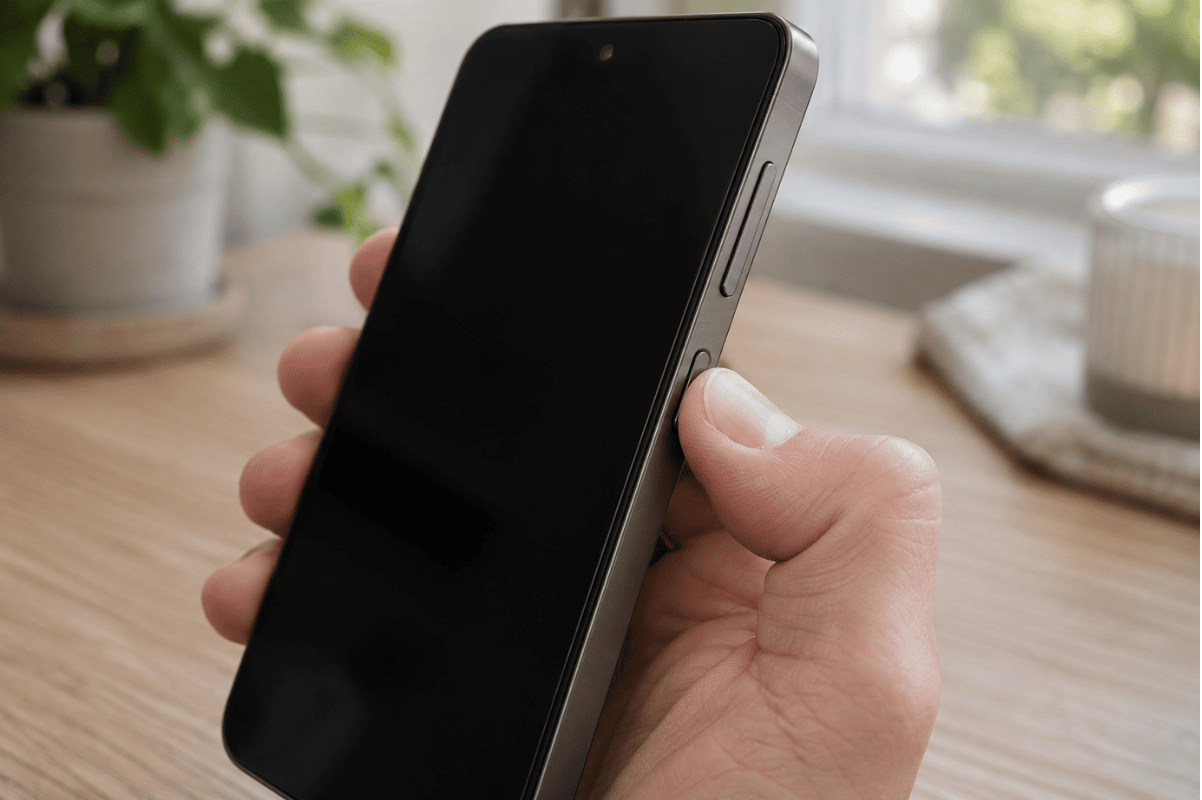
- Take off the case and disconnect USB accessories. Check whether the Power or Volume buttons move freely. If the phone starts after you remove the case, the case may have been holding a button down.
- Use the restart buttons for your phone. On many Samsung Galaxy models, hold Side + Volume Down together for more than seven seconds, until the phone restarts. For a frozen Google Pixel with the screen on, Google advises holding Power for about 60 seconds. For Motorola, OnePlus, and other Android phones, use the manufacturer’s instructions for your exact model. These Android button combinations differ from iPhone restart steps.
- Watch where startup ends. If the lock screen appears, unlock the phone and back up anything important. If the same logo returns and startup stalls again, check the charger before moving on.
2. Check the charger, cable, and wall outlet
If the phone is dry, undamaged, and cool, plug it into a working wall outlet using a compatible charger and cable you know work. Give it about 30 minutes to charge, then try one more forced restart. If the phone shows no sign of charging, try another compatible cable or wall adapter to see whether the charging setup is part of the problem. If it charges but takes much longer than usual, check why your Android phone is charging slowly.
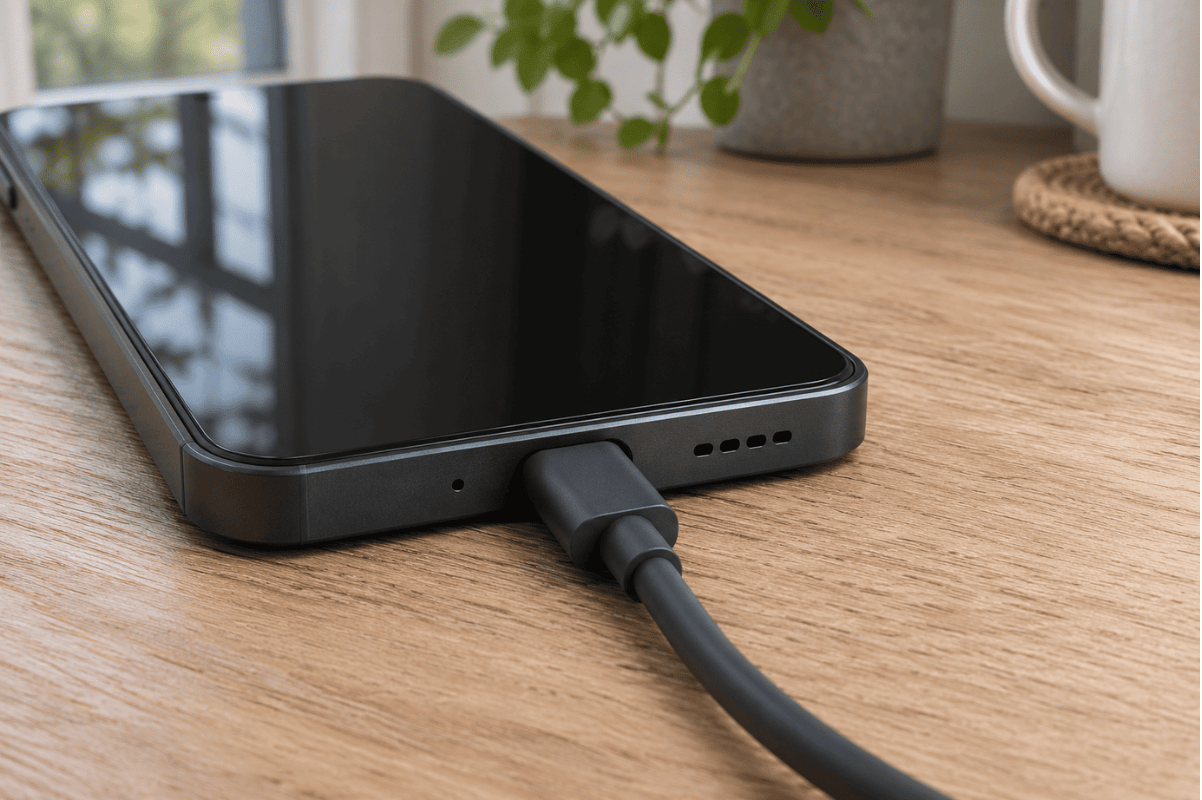
A phone that starts after charging may simply have been low on power. If it gets past the logo while plugged in but shuts off as soon as you unplug it, note that behaviour. It can help a technician decide whether to check the battery or power system before recommending a phone battery replacement. If it has had time to charge and still stalls at the same logo, move on to Safe Mode if your model supports starting it from the buttons.
3. Try Safe Mode to check for a problem app
Safe Mode temporarily disables downloaded apps. If your phone reaches the lock screen in Safe Mode but keeps freezing during normal startup, a recently installed or updated app is a likely cause.
- Start from a powered-off phone if you can. On a Google Pixel, press Power. When the startup animation begins, hold Volume Down until startup finishes. On a compatible Samsung Galaxy, turn it on and hold Volume Down as soon as the Samsung logo appears. Keep holding until the phone starts. Look for Safe mode at the bottom of the screen.
- Unlock the phone and back up important files. If the phone stays on, start by removing an app you installed or updated shortly before the problem began.
- Restart normally after each removal. This helps you identify which change made a difference. If the phone stays in Safe Mode after restarting, follow the steps to turn off Safe Mode on Android. If the phone still freezes in Safe Mode or can’t get far enough to enter it, move on. The app check may be inconclusive.
4. Back up your files before considering a factory reset
If the phone starts even briefly, use that chance to save anything you’d have trouble replacing. Check whether your photos, contacts, and messages are backed up, and copy any important downloads you can still reach. If the phone stays on long enough, you can also back up Android text messages to a computer. If you already use a cloud backup, check from another device what’s actually there.
A factory reset erases apps, settings, and files stored on the phone. Consider it only after you’ve verified your backup or decided you can accept losing the data. Make sure you know the Google Account and password previously used on the phone, since Android may ask for them during setup.
If you land on a recovery menu by accident and see Reboot system now, use that option to try a normal restart. If the screen displays a “No command” message on Android, check what it means before pressing more buttons. Leave Wipe data/factory reset alone until you’re ready to erase the phone. Recovery menus and button combinations vary by model, so follow the manufacturer’s instructions for your device. If your photos or other files are irreplaceable and you can’t confirm a backup, stop here and ask a technician about your options first.
When does an Android boot problem need professional help?
An inspection makes sense if the phone repeatedly returns to the logo after a forced restart and a charging check, can’t enter Safe Mode, or starts only while plugged in. If the problem began after a drop or spill, mention that when you bring it in. Also note whether the logo stays on screen or disappears and comes back, and whether the issue started after an update. If the phone now reaches the lock screen but Android apps keep crashing after an update, troubleshoot the app crashes while you can still access the phone.
If you’re arranging cell phone repair, tell the technician upfront if keeping your data is your priority. Bring the phone’s make and model, along with a short list of the steps you tried. If you need Android phone repair in Mississauga and your Android still won’t get past the logo, you’re welcome to bring it to WeFixPhones for an assessment.